1080p vs 1440p: Your Monitor Might Not Be Showing What You Think
August 27, 2026
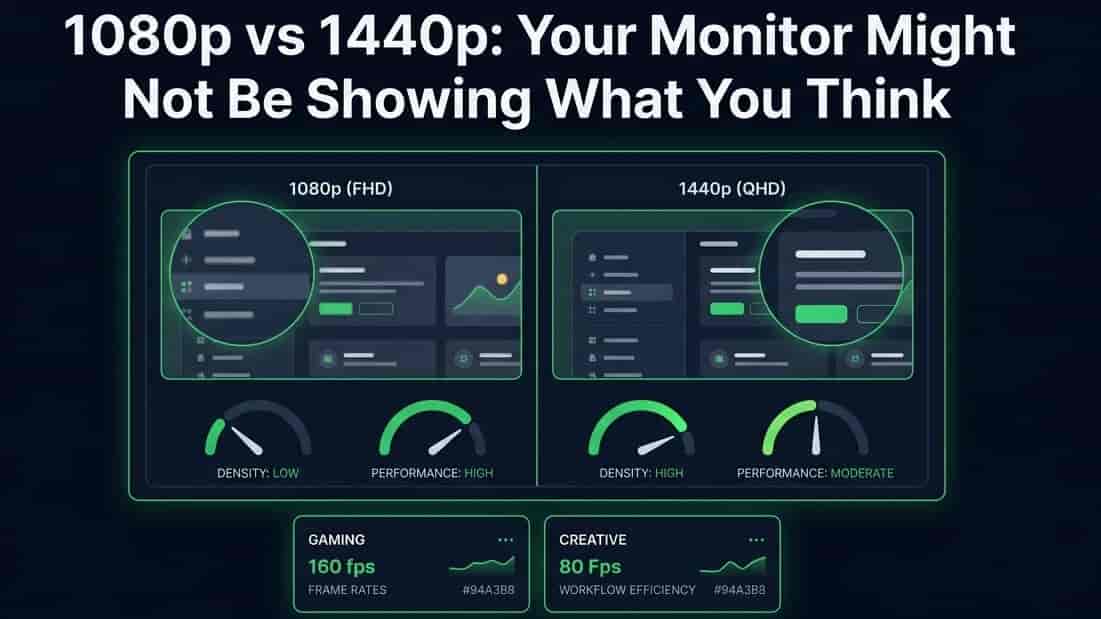
Ever bought a "1440p" monitor and felt like it doesn't look much sharper than your old one? You're not imagining it. A lot of the time, the problem isn't the monitor at all. It's a Windows setting quietly working against you, and most people never even know it's there.
Let's clear this up in plain terms.
Resolution and scaling are two different things
People mix these up all the time, so let's separate them first.
Resolution is how many actual dots (pixels) your screen is drawing. A 1440p screen draws 2560 x 1440 pixels. A 1080p screen draws 1920 x 1080. More pixels usually means more detail, like a photo taken with a better camera.
Scaling is a completely different setting. It just controls how big things look on your screen. It doesn't add or remove any pixels, it just zooms in or out on everything: text, icons, buttons, all of it.
Here's the part that trips people up: your monitor can be running at full 1440p resolution while Windows scaling makes everything look blown up and soft, almost like you're back on a lower-res screen. The pixels are all there, but the way Windows is displaying things on top of them can hide the sharpness you paid for.
Why this happens
When you get a new high-resolution monitor, Windows usually sets scaling automatically often 125% or 150% so text and icons aren't tiny and hard to read. That's a good thing on its own. The problem starts when:
An app or game doesn't handle scaling properly, so it looks blurry or stretched instead of crisp
You think you're playing or working at your monitor's full resolution, but a game's internal render setting is actually set lower
You compare your "1440p" monitor to a friend's 1080p one side by side, and because of scaling, the difference looks smaller than it should
None of this means your monitor is broken or that you got a bad deal. It just means resolution and scaling are working differently than people assume, and nobody explains it clearly.
Why games make this even more confusing
In games, there's a third thing on top of resolution and scaling: render resolution (sometimes called "resolution scale" in a game's graphics settings). This is a separate slider that decides what resolution the game itself is drawing at, before it gets shown on your monitor.
So you can have all three settings pointing in different directions at once:
Your monitor's native resolution: 1440p
Your Windows scaling: 125%
Your in-game render resolution: set to 80%
In that setup, the actual image being drawn by your GPU is lower than what your monitor is capable of, even though your monitor itself is "1440p." This is a common reason people lower a graphics setting to boost their FPS and then wonder why the game suddenly looks soft. It's not always a bug, sometimes it's a setting.
Your cable and port can quietly cap your resolution too
Here's one that surprises a lot of people: the cable in the box isn't always good enough for the monitor it came with. Different cable types can carry different amounts of data per second, and a high-resolution, high-refresh-rate signal needs a lot of it. If the cable, the port on your PC, or the port on your monitor can't keep up, your system will usually just quietly drop to a lower resolution or refresh rate instead of showing an error.
A common real example: someone buys a 1440p 144Hz monitor, plugs in the HDMI cable that came in the box, and Windows shows the monitor running at 1440p but only 60Hz, or sometimes even drops the resolution itself. The panel is perfectly fine. The cable or port is the actual bottleneck.
A few things that can cause this:
Older HDMI or DisplayPort versions. Older ports and cables simply can't carry as much data. A high-resolution, high-refresh combination might need a newer version to work at full strength.
Long or cheap cables. Longer cables and poorly made ones are more likely to struggle with high-bandwidth signals, especially at high refresh rates.
USB-C adapters and docks. If you're connecting through a USB-C hub or dongle, that adapter becomes part of the chain too, and a weak one can cap your resolution or refresh rate even if your monitor and GPU are both capable of more.
A monitor's internal port setting. Some monitors have a hidden setting (usually in the on-screen menu) that limits which DisplayPort or HDMI version the port expects. If it's left on an older compatibility mode, your PC may never even see the monitor's full native resolution as an option.
The good news is this is usually a quick fix once you know to look for it: try a different, certified cable, plug into a different port on your GPU, or check the monitor's on-screen menu for a port version setting.
Laptops add one more twist
If you're on a laptop, there's an extra layer to this. Many laptops have two graphics processors: a weaker one built into the CPU (integrated graphics) and a more powerful separate one (dedicated graphics), often from NVIDIA or AMD. Windows is supposed to automatically pick the right one for each app, but it doesn't always guess correctly.
If a game or app is quietly running on the integrated graphics instead of the dedicated GPU, you might see lower resolution options, lower FPS, or a softer-looking image, even though your laptop's screen is technically capable of much more. This is separate from the scaling and cable issues above, but it produces a very similar symptom: things look worse than they should for no obvious reason.
You can usually check and fix this in your GPU's control panel (NVIDIA Control Panel or AMD Software) under a section for graphics performance or app-specific settings, where you can force a specific app to always use the dedicated GPU.
Step-by-step: figuring out which one is your problem
Instead of guessing, work through these in order. Each one takes under a minute.
Check your actual resolution. Open our Screen Size Checker. It reads out your real screen resolution, viewport size, and pixel ratio live, right in your browser.
Compare it to your monitor's rated resolution. Check the box or the manufacturer's product page if you're not sure what your monitor is supposed to support.
If the resolution looks correct but things still look soft: it's probably a scaling issue. Check your Windows display settings (Settings > System > Display) and look at the scaling percentage.
If the resolution itself looks lower than it should be: check your cable and port first. Try a different cable, a different port, or check the monitor's on-screen menu for a DisplayPort/HDMI version setting.
If you're on a laptop and only certain apps look wrong: check your GPU control panel to make sure the app is set to use the dedicated GPU, not the integrated one.
If it's specifically a game that looks soft: check the game's own graphics settings for a "render scale" or "resolution scale" option, and make sure it's set to 100% (or higher, if you're trying to boost sharpness at the cost of FPS).
Frequently asked questions
Does lowering scaling make my resolution higher?
No. Scaling and resolution are independent settings. Lowering your scaling percentage just makes everything on screen appear smaller it doesn't add any pixels or make your display any sharper.
Will a more expensive cable make the picture sharper?
Not on its own. Digital cables either carry the full signal cleanly or they don't. What matters is whether the cable is rated for the bandwidth your resolution and refresh rate combination needs not the price tag.
Why does my monitor show a lower refresh rate over HDMI than over DisplayPort?
This is common and usually intentional on the monitor's end. Many gaming monitors reserve their highest refresh rate for DisplayPort and cap HDMI lower, especially on older HDMI versions. Check your monitor's manual for which port supports its full advertised refresh rate.
Is 1440p always going to look sharper than 1080p?
On a screen actually built for 1440p, yes more pixels means more real detail. But if scaling, a weak cable, or a low render resolution setting is working against it, a 1440p screen can end up looking no sharper than a well-configured 1080p one in practice. The resolution number on the box is a ceiling, not a guarantee.
The simple version
Resolution = how many pixels your screen draws (sharpness ceiling)
Scaling = how big things look on top of that (doesn't change the pixel count)
Render resolution (in games) = what the game is actually drawing before your monitor shows it
If your "high-res" monitor doesn't look as sharp as expected, it's very often one of these three settings working against the other two, not a bad panel. A quick check with a resolution tool can usually tell you which one is the culprit in under a minute.