What Does This FPS Test Actually Measure?
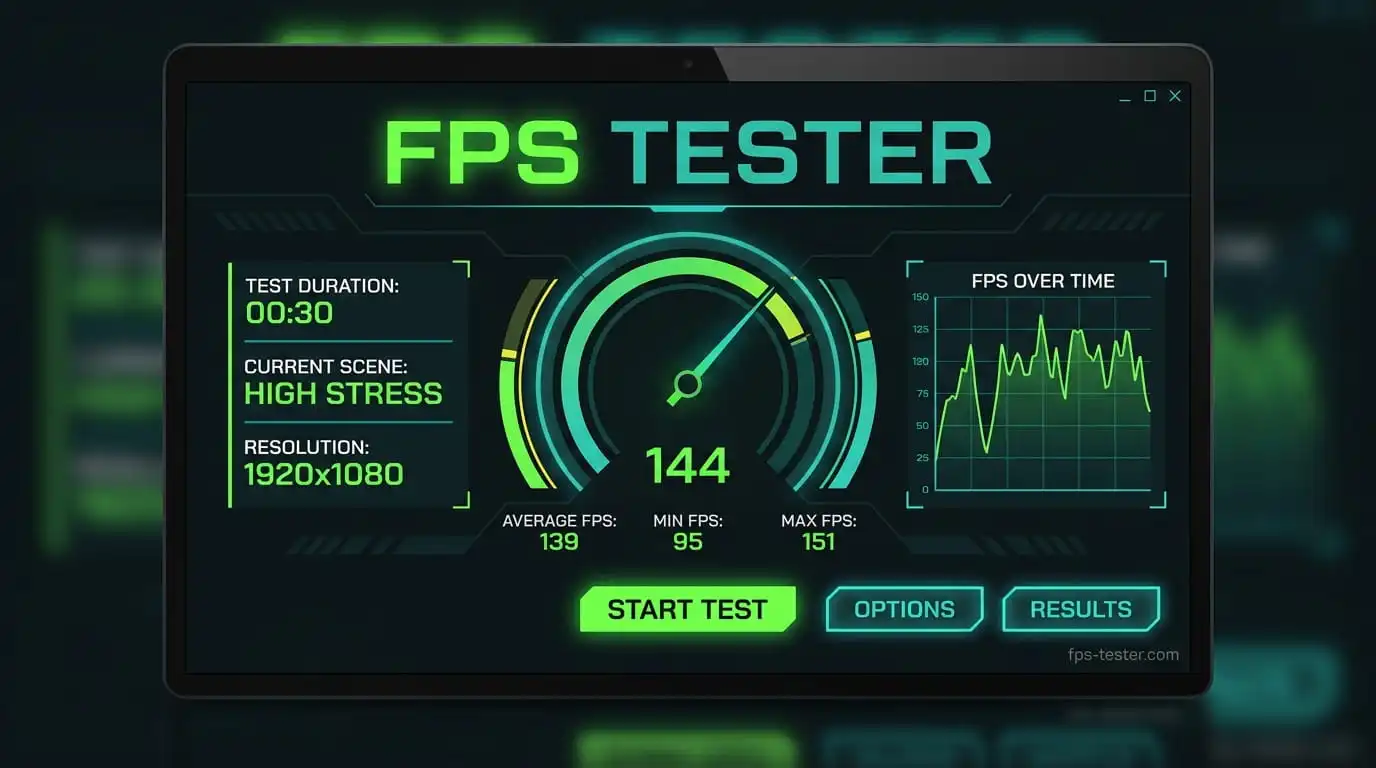
Click the Start button and the test begins counting how many animation frames your browser renders every second using requestAnimationFrame, the same API browsers use for games and animations. So you're seeing your actual rendering speed, not some theoretical number.
This FPS test reflects your system’s real-time performance. The results depend on multiple factors, including your GPU, CPU load, active background processes, power mode (battery vs. plugged in), and your monitor’s refresh rate. Rather than showing theoretical maximum performance, it measures how your setup actually performs under current conditions.
How to Check FPS in Google Chrome (2 Easy Ways)
You can check FPS in Chrome with this online test or Chrome’s built-in performance overlay. Use this page to check its animation frame rate, or use DevTools to inspect the website or browser game you actually want to test. Neither method measures FPS inside a separate PC game.
Method 1: Use the Online FPS Tester
- Scroll up to the FPS test on this page and click Start FPS Test.
- Keep the tab visible and let it run for at least 10–15 seconds.
- Read the live FPS, minimum, maximum, and average values, then check the graph for sudden dips.
- Click Stop Test when you finish. No extension or download is needed.
Method 2: Enable Chrome’s Built-in FPS Meter
- In desktop Chrome, open the page or browser game you want to inspect.
- Right-click the page and choose Inspect to open Chrome DevTools.
- In DevTools, open the three-dot menu, choose More tools, then select Rendering.
- Enable Frame rendering stats. Older Chrome versions may call this FPS meter.
- Play the animation, scroll, or interact with the browser game and watch the overlay for frame-rate changes and dropped frames. Turn the option off when you finish.
Shortcut: with DevTools focused, press Ctrl + Shift + P (Windows/Linux) or Cmd + Shift + P (Mac), search for Show Rendering, and open the panel.
A reading near 60 FPS on a 60 Hz display is usually normal: Chrome typically synchronizes rendering with the display’s refresh rate. If performance is unexpectedly low, check graphics acceleration in Chrome’s System settings. The online test also works in mobile Chrome, but these DevTools steps are for desktop Chrome. DevTools adds some overhead, so compare results under the same conditions.
How to Get the Most Accurate Results?
For the cleanest reading, close other tabs and heavy applications before running the test. If you're on a laptop, plug it in - battery-saving modes can throttle your GPU and CPU, which directly reduces your FPS. Also, make sure this tab is in focus; browsers deprioritize background tabs and will cap their frame rate to save resources.
Let the test run for at least 10-15 seconds to get a stable average. The first couple of seconds might spike as your system ramps up, so the longer you run it, the more reliable your min/max/average numbers become.
Understanding the Frame Rate Comparison
The comparison section above shows moving objects at different frame rates side by side. The green indicator represents your current FPS, allowing you to see exactly where your system falls relative to 15, 30, and 60 FPS. The visual difference especially between 15 and 60 FPS should be immediately noticeable.
This is great for showing someone why FPS matters - words can't really capture it, you have to see it. Try scrolling the page while the comparison runs and notice how browser rendering affects the animation.
FPS Benchmarks: What Do the Numbers Mean?
Movement looks choppy and not smooth. You may notice lag or delay when you interact. This usually happens when your device is under heavy load or not powerful enough for smooth performance.
Usable for casual content but you'll notice the choppiness, especially in animations and scrolling. This range is common and still comfortable for everyday use.
Where most people should be. 60 FPS is the standard everything is built for. Scrolling and animations feel smooth and responsive.
Silky smooth. You need a high-refresh monitor to actually see these frames, but the experience is noticeably better than 60 FPS. Once you go 144Hz, you never go back.
FPS vs Refresh Rate
Your monitor’s refresh rate (Hz) tells you how many times the screen can update each second. FPS shows how many frames your system is creating in that same time.
These two don’t always match. Your system might be producing more frames than your screen can display. For example, if your monitor runs at 60Hz, it can only show 60 frames per second, even if your system is generating much more. If you want to check your monitor’s current refresh rate, you can use the Refresh Rate Test.
| Monitor Refresh Rate | Best For | Ideal FPS Target | Feel |
|---|---|---|---|
| 60 Hz | Office work, casual browsing, single-player games | 60 FPS | Smooth enough for most users |
| 75 Hz | Light gaming, productivity | 75 FPS | Slight upgrade over 60 Hz |
| 120 Hz | Console gaming, smooth scrolling | 120 FPS | Visibly smoother motion |
| 144 Hz | Competitive FPS games (CS, Valorant) | 144+ FPS | Big jump in responsiveness |
| 240 Hz | Esports, pro-level aim | 240+ FPS | Ultra-fluid, lower input lag |
| 360 Hz / 480 Hz | Tournament players, motion clarity | 360+ FPS | Diminishing but real returns |
When FPS and Refresh Rate Don’t Match
| Scenario | Your FPS | Monitor Hz | What You See |
|---|---|---|---|
| FPS = Hz | 60 | 60 Hz | Perfectly smooth, no waste |
| FPS > Hz | 200 | 60 Hz | Screen shows only 60; extra frames wasted, possible tearing |
| FPS < Hz | 45 | 144 Hz | Stutter and uneven motion unless VRR/G-Sync/FreeSync is on |
| VRR Enabled | 90 | 144 Hz | Monitor matches FPS dynamically — smooth, no tearing |
When FPS runs well above your refresh rate with no sync enabled, you get screen tearing — a horizontal seam where the top and bottom of the image no longer line up. You can confirm it in a few seconds with the Screen Tearing Test.
What Affects Your Browser FPS? Common Causes of Slowdowns
Browser FPS depends on your display, available processing power, and the work your browser is doing. A steady refresh-rate limit is different from stuttering or sudden drops. Use these factors to identify the cause before changing settings or buying new hardware.
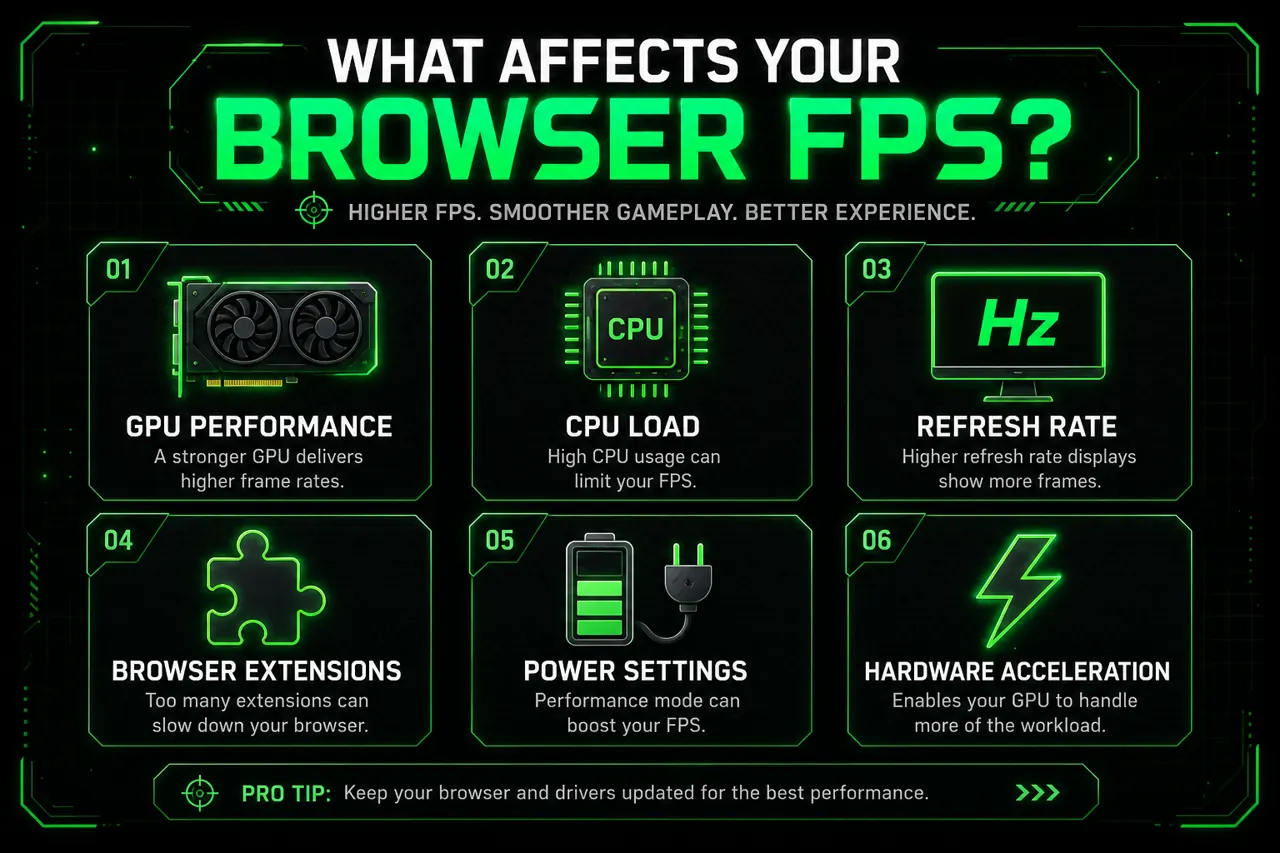
- Monitor refresh rate: Browser animation usually follows your display’s refresh rate. Around 60 FPS on a 60Hz screen can be normal, not a sign of weak hardware. Check your display settings if a high-refresh monitor is running at 60Hz.
- GPU performance and drivers: Your graphics processor handles accelerated rendering. Integrated graphics can be sufficient for simple animations, while heavier effects need more GPU power. Outdated or faulty drivers can cause stuttering; check NVIDIA, AMD, Intel, or your device manufacturer for a compatible update.
- CPU load and open tabs: JavaScript, page layout, and active tabs compete for processing time. Memory pressure can also interrupt smooth rendering. Close unused tabs, especially those playing video or running animations.
- Background apps and overlays: Screen recording, streaming, app updates, and overlays can compete for CPU or GPU resources. Pause nonessential work when comparing test results, without disabling your security protection.
- Browser extensions: Extensions that modify pages can add rendering overhead. Compare with a private window where extensions are disabled, or temporarily disable them individually to find a problem extension.
- Hardware acceleration: Disabling acceleration can move rendering work from the GPU to the CPU. In Chrome, look under Settings → System for “Use graphics acceleration when available,” then relaunch after changing it. If enabling it causes glitches, investigate driver compatibility rather than assuming it always improves performance.
- Battery saver and power settings: Power-saving modes can limit processor speed. Plug in your laptop and compare with its normal performance mode; higher-performance settings may increase heat and power use.
- Overheating and thermal throttling: A CPU or GPU may reduce its speed when hot. If FPS falls during a longer test, check temperatures and airflow. Keep vents clear and follow the manufacturer’s cleaning guidance.
How to Improve Your FPS?
Start with a baseline: run the test in a visible tab and note the average FPS and any dips. Choose one relevant fix from the causes above, then repeat with the same test settings and duration. Changing one thing at a time makes it easier to tell what actually helped.
If the problem remains, compare an updated Chrome, Edge, or Firefox on the same screen under the same conditions. Browser versions, settings, and graphics backends can affect results. A stable reading near your display’s refresh rate is usually more useful than chasing a higher number that your screen cannot display.
Browser FPS vs. Gaming FPS
A lot of people see their browser FPS number and assume it reflects how their PC will perform in games. It doesn't. Browser FPS and gaming FPS measure two very different workloads, and the gap between them can be huge. Here's what's actually going on under the hood and why the numbers rarely match.
What Browser FPS Actually Measures
Browser FPS shows how many frames per second your browser can draw on a web page. The work is mostly 2D: painting boxes, animating CSS, running JavaScript, and pushing the result to the GPU through the compositor. It is almost always capped by your monitor's refresh rate via VSync, so a 60Hz display will usually show 60 FPS even if the system could push more.
What Gaming FPS Actually Measures
Gaming FPS measures how many full 3D frames your GPU can render in a real game engine. Every frame involves geometry, lighting, shadows, textures, physics, and post-processing. This hammers the GPU and CPU in ways a web page never will. That's why a system that hits a flat 60 FPS in the browser might only manage 45 FPS in a modern game at 1080p.
Key Differences at a Glance
| Aspect | Browser FPS | Gaming FPS |
|---|---|---|
| Workload | 2D rendering, DOM, JS | 3D rendering, physics, AI |
| Main bottleneck | CPU + JS engine | GPU (mostly) |
| FPS cap | Usually monitor refresh rate | Uncapped or set in-game |
| VSync behavior | Always on by default | Optional, often off |
| Reflects gaming power? | No | Yes |
Why Your Browser FPS Looks "Too Good"
- •VSync caps it: Browsers stick to your refresh rate, so even a weak GPU can show a perfect 60 or 120 FPS on a web page.
- •Light GPU load: Drawing rectangles and text is trivial compared to rendering a full 3D scene.
- •No physics or AI: Webpages don't have to calculate gravity, explosions, or smart enemies. Games have to calculate all of that dozens of times a second!
When Browser FPS Actually Matters
Even though it doesn't predict gaming performance, browser FPS is still a useful signal. If your browser can't hit a stable 60 FPS on a simple page, something is off maybe hardware acceleration is disabled, your GPU drivers are outdated, a heavy extension is running, or your laptop is throttling on battery. It's also the right number to care about if you do most of your work inside web apps, video calls, or browser-based tools.
Use browser FPS to check that your display, browser, and basic system setup are healthy. Use a real in-game benchmark or a tool like 3DMark when you want to know how your PC will handle actual games. Both numbers are valid they just answer different questions.
Why This Exists?
Most FPS tools involve software downloads, inaccurate estimates or an overwhelming number of options for the user. We built this browser based FPS Tester to give you a fast and accurate way to measure real time frame rate right in your browser. Take the test and instantly see how your system performs.