Monitor Refresh Rate Test

Let's find out what refresh rate your monitor is actually running at. It takes about 3 seconds - just click the button below.

?
Hz
Click below to detect your monitor's true refresh rate. Takes about 3 seconds.

Common Monitor Refresh Rates

60
Hz
Standard
Office, browsing, casual use
144
Hz
Gaming
Best balance for competitive gaming
240
Hz
Esports
Professional esports, maximum smoothness
360
Hz
Elite
Bleeding-edge, diminishing returns

Quick Guide

1

Click "Detect Refresh Rate"

Hit the button above and keep this tab in focus. The test takes about 3 seconds.

2

Read Your Hz

Your monitor's actual refresh rate appears as a big number. If it's lower than expected, your settings might need adjusting.

3

Fix If Needed

Got 60Hz on a 144Hz monitor? Check the guide below to change your refresh rate in Windows, Mac, or Linux display settings.

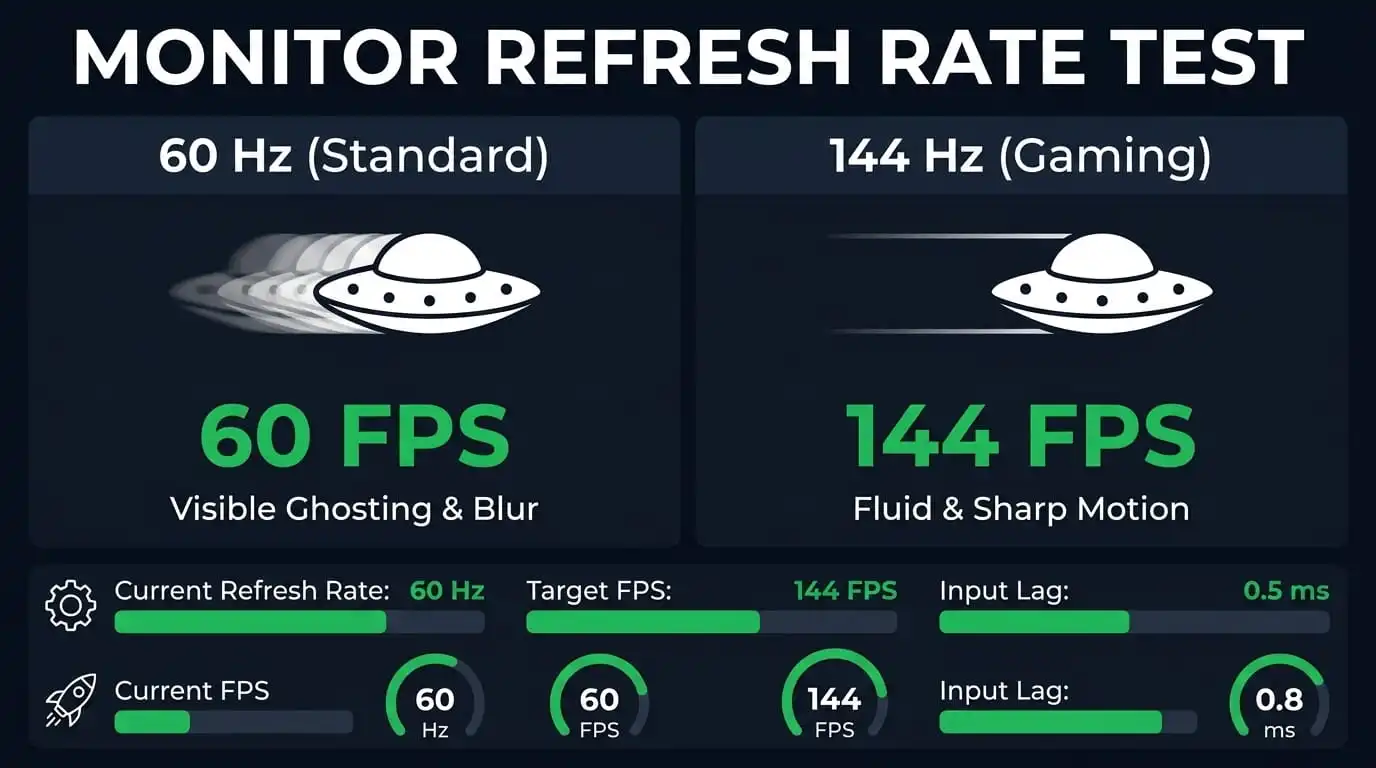
Monitor refresh rate test comparison showing 60Hz with visible ghosting and blur versus 144Hz with fluid and sharp motion

What Exactly is a Refresh Rate (Hz)?

Remember playing with flipbooks when you were a kid? If you flip the pages slowly, the cartoon drawing looks jumpy and choppy. But if you flip the pages really fast, the drawing magically moves smoothly.

Your computer screen works the exact same way. It doesn't actually play a moving video. Instead, it flashes a rapid series of completely still pictures to trick your eyes into seeing motion.

Refresh Rate (measured in Hertz, or Hz) is simply how many times per second your screen can wipe itself clean and draw a brand-new picture.

  • A 60Hz Monitor: Draws a new picture 60 times every second.
  • A 144Hz Monitor: Draws a new picture 144 times every second.

The Golden Rule: The higher the Hz number, the more pictures your screen draws. This makes moving your mouse, gaming, and scrolling down webpages look buttery smooth. Higher refresh rates also drastically reduce eye strain if you look at a screen all day.

Refresh Rate (Hz) vs. Frame Rate (FPS): What is the Difference?

People constantly mix up Refresh Rate (Hz) and Frame Rate (FPS). They sound like the same thing, but they actually measure two totally different pieces of hardware.

Frame Rate (FPS) is your computer's muscle. This is how many pictures your computer (specifically your graphics card) is strong enough to create every second.

Refresh Rate (Hz) is your monitor's speed limit. This is how many pictures your screen is actually allowed to show you.

Your monitor can never show you more frames than its own speed limit. To understand why this matters, look at these two common problems:

Problem 1: The Fast PC and Slow Screen

Imagine you have an expensive computer running a game at 120 FPS. But, it is plugged into a cheap 60Hz office monitor. Even though your computer made 120 pictures, your monitor can only physically show you 60 of them. Those extra frames are thrown in the trash!

Problem 2: The Slow PC and Fast Screen

What if you buy a super-fast 240Hz gaming monitor, but your old laptop can only run a game at 30 FPS? Your expensive monitor has to sit around waiting. It will just show you the exact same picture over and over again until your slow computer finally finishes drawing the next one.

Which Refresh Rate is Right for You? (60Hz to 360Hz+)

Picking the right refresh rate depends on what you do most. Here is a simple breakdown of each common refresh rate, who it is best for, and what you can expect from it.

60Hz - The Everyday Standard

Office / Streaming

Perfect for web browsing, watching Netflix, and writing emails. Most office monitors and budget laptops use this. It is smooth enough for daily tasks, but fast motion in games will show some blur.

75Hz - The Budget Upgrade

Casual Gaming

A small but noticeable step up from 60Hz. Scrolling feels smoother, and casual games look a bit cleaner. Great if you want a better experience without spending much.

120Hz / 144Hz - The Gaming Sweet Spot

Competitive Gaming

This is where gaming starts to feel truly different. Mouse movement becomes buttery smooth, and fast action in FPS and racing games is much easier to track. This is the most popular choice for PC gamers today.

165Hz / 180Hz - The Modern Mid-Range

Serious Gamers

Found on many newer gaming monitors. It gives a small but real edge over 144Hz without the premium price of 240Hz. If you are buying a new monitor in this range, it is a solid investment.

240Hz - The Esports Standard

Esports / Pro

Used by professional esports players. The motion clarity is excellent, and input lag is extremely low. You need a powerful graphics card to actually push 240 FPS in games to get the full benefit.

360Hz+ - The Bleeding Edge

Ultra Competitive

The absolute fastest monitors on the market. Diminishing returns are real here the jump from 240Hz to 360Hz is smaller than 60Hz to 144Hz. Only worth it if you are a top-tier competitive player chasing every millisecond.

Bottom line: If you mostly work and watch videos, 60Hz is fine. If you game casually, aim for 120Hz or 144Hz. If you play competitively, 240Hz is the pro standard. 360Hz is only for those who truly need the absolute best.

Why Should You Check Your Refresh Rate?

This happens way more than you'd expect: someone gets a new 144Hz monitor, plugs it in, and games for months at 60Hz because they never switched the refresh rate in their settings. Don't be that person. Run the test and find out.

Your refresh rate also sets the limit on how many frames your screen can display each second. Even if your system is producing very high FPS, your monitor can only show up to its set refresh rate. If it’s set too low, you won’t see the full benefit. Want to know how many frames your system is actually producing? Try our FPS Test.

Why is My 144Hz Monitor Stuck at 60Hz? (How to Fix It)

You unboxed your shiny new 144Hz gaming monitor, plugged it in, fired up your favorite game, and something feels off. It still looks like your old 60Hz screen. You are not alone, this is one of the most common problems gamers run into.

Here are the most common culprits, ranked from easiest to fix to most overlooked:

  • Wrong cable: That old HDMI cable from 2015 might not support 144Hz. Use DisplayPort 1.2+ or a certified HDMI 2.0+ cable.
  • Wrong port: Some monitors only support 144Hz on specific ports. Check your manual DisplayPort is usually the safest bet.
  • Windows is set to 60Hz: Windows often defaults to 60Hz even on a 144Hz monitor. You have to manually change it in Display Settings.
  • Outdated GPU drivers: Old NVIDIA or AMD drivers can hide higher refresh rate options. Keep your drivers updated.
  • Using integrated graphics: If your monitor is plugged into the motherboard instead of the graphics card, you might be stuck at 60Hz.

How to Change Your Refresh Rate

On Windows 10/11: Right-click your desktop → Display settings → Advanced display settings → Choose your display → Set the refresh rate from the dropdown. If you don't see the higher option, check your cable and GPU driver.

On Mac: System Preferences → Displays → Hold Option and click "Scaled" to see refresh rate options. ProMotion MacBook Pros support up to 120Hz. External monitors depend on your cable and port.

On Linux: Use xrandr to check available refresh rates and set your preferred one. For example: xrandr --output HDMI-1 --mode 1920x1080 --rate 144

Cables and Connections: The Hidden Bottleneck

Your cable can be the reason you're stuck at a lower refresh rate. Here's a quick reference:

Cable TypeMax Resolution @ Refresh Rate
HDMI 1.41080p @ 120Hz, 1440p @ 60Hz, 4K @ 30Hz
HDMI 2.01080p @ 240Hz, 1440p @ 144Hz, 4K @ 60Hz
HDMI 2.14K @ 120Hz, 8K @ 60Hz
DisplayPort 1.21080p @ 240Hz, 1440p @ 165Hz, 4K @ 75Hz
DisplayPort 1.41440p @ 240Hz, 4K @ 120Hz (with DSC)

If your monitor and GPU both have DisplayPort, use that over HDMI. DisplayPort handles high refresh rates better, especially at higher resolutions.

Adaptive Sync: G-Sync and FreeSync

Normal monitors refresh the screen at a fixed rate, even if your FPS is constantly changing. When these don’t match, you can get screen tearing, where parts of different frames appear on the screen at the same time. Adaptive sync fixes this problem by adjusting the monitor’s refresh rate in real time to match your GPU’s output. This keeps motion smooth and eliminates tearing without adding noticeable delay.

NVIDIA G-Sync works with NVIDIA GPUs. There are dedicated G-Sync modules (expensive, premium monitors) and "G-Sync Compatible" (cheaper, works via VESA Adaptive Sync). AMD FreeSync works with AMD GPUs and is free for monitor manufacturers to implement, making it much more common. Most modern NVIDIA GPUs also support FreeSync monitors.

If your monitor supports adaptive sync, make sure it's turned on in both your monitor's OSD menu and your GPU settings. It makes a big difference - you get smooth frames without the input lag that VSync adds.

Frequently Asked Questions

How does this refresh rate test work?

We use requestAnimationFrame to measure the time between each frame your browser renders. By analyzing the timing intervals over a few seconds, we can determine your monitor's actual refresh rate. It's surprisingly accurate for most setups.

Why does it show a different number than my monitor's spec?

A few things can cause this: your OS might be set to a lower refresh rate than your monitor supports, your browser might be throttling frames, or if you're on battery power, your system may reduce the refresh rate to save energy. Check your display settings to make sure you've actually enabled the higher refresh rate.

Can I test if my 144Hz monitor is actually running at 144Hz?

That's exactly what this tool is for. If your monitor says 144Hz but the test shows 60Hz, you need to go into your display settings and actually switch it. On Windows: Display Settings, then Advanced Display, pick your monitor and set the refresh rate. On Mac: System Preferences, then Displays.

Does the browser affect the refresh rate reading?

The browser doesn't change your monitor's refresh rate, but it can cap the rendering rate. Most browsers sync to your display's refresh rate by default (VSync). If your browser is struggling with performance, you might see a slightly lower number, but generally it's very close.

What cable do I need for high refresh rates?

It depends on your resolution. For 1080p at 144Hz, any HDMI 1.4 or DisplayPort cable works. For 1440p at 144Hz or higher, you need at least HDMI 2.0 or DisplayPort 1.2. For 4K at 120Hz+, you need HDMI 2.1 or DisplayPort 1.4. Using the wrong cable is one of the most common reasons people can't enable higher refresh rates.

Can my laptop support high refresh rates on an external monitor?

It depends on your laptop's graphics output. Thunderbolt 3/4 and USB-C with DisplayPort Alt Mode typically support high refresh rates. Older HDMI ports on laptops might be limited to HDMI 1.4 (60Hz at 1440p). Check your laptop's specs and make sure you're using the right port and cable.

What's the difference between native and overclocked refresh rates?

Native refresh rate is what your monitor is designed and rated for. Overclocking pushes it beyond that - for example, pushing a 60Hz panel to 75Hz. While this sometimes works, it can cause frame skipping, visual artifacts, or reduced panel lifespan. This test will show you whatever rate your display is actually running at, whether native or overclocked.

Explore More Tools

Get the full picture of your setup. Each tool is free, runs in your browser, and needs zero downloads.