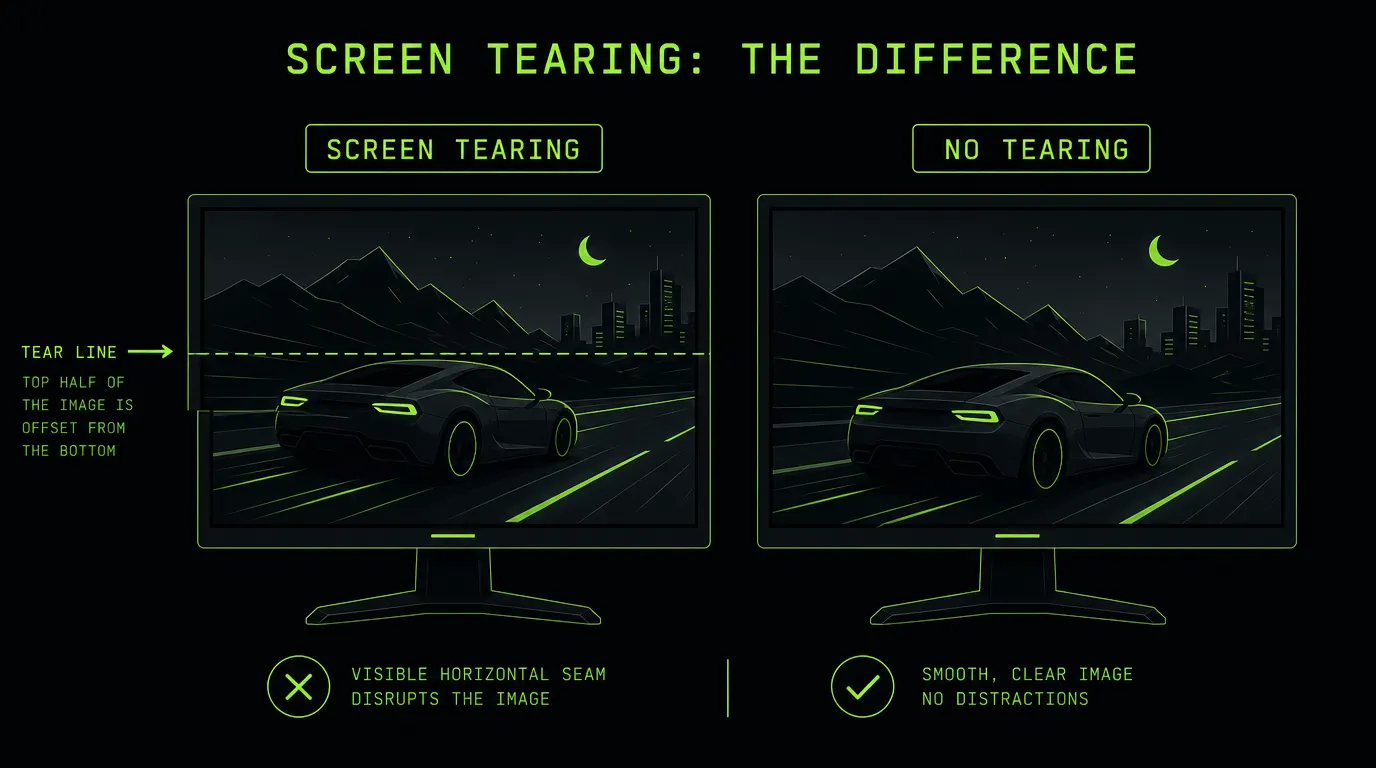
What Is Screen Tearing?
Screen tearing is what you see when your monitor displays parts of two or more different frames in a single refresh. Your graphics card renders frames into a buffer, and your monitor reads that buffer from top to bottom at a fixed rate. If the GPU swaps in a new frame while the monitor is halfway through reading, the top of the screen shows the old frame and the bottom shows the new one, with a visible offset between them.
It's most obvious during fast horizontal motion panning a camera in a game, scrolling a page quickly, or watching a car drive across the screen. That's exactly the motion this tearing test recreates.
What Causes Screen Tearing?
- VSync is off: nothing tells the GPU to wait for the monitor's refresh, so buffer swaps land mid-scan. This is the single most common cause.
- FPS higher than your refresh rate: at 250 FPS on a 60Hz panel the buffer is overwritten several times per refresh, producing multiple tear lines at once.
- Unstable frame pacing: even at matching averages, uneven frame times drift in and out of phase with the refresh cycle.
- GPU driver or compositor issues: outdated drivers, a broken desktop compositor, or conflicting overlay software can bypass sync entirely.
- Cable and bandwidth limits: an HDMI 1.4 cable at 1440p can force fallback modes and disable adaptive sync, which brings tearing back.
- Adaptive sync outside its range: G-Sync and FreeSync only work inside a set Hz window; drop below or shoot above it and tearing returns.
Screen Tearing vs Stuttering vs Ghosting
These three get confused constantly, and the fixes are completely different. Use this table to identify what you're actually seeing on the tearing test above.
| Artifact | What It Looks Like | Root Cause | Typical Fix |
|---|---|---|---|
| Tearing | A straight horizontal seam splitting the image, top offset from bottom | Frame buffer swapped mid-refresh (no sync) | Enable VSync or G-Sync/FreeSync, cap FPS |
| Stuttering | Motion hitches and jumps, image stays intact | Uneven frame times, FPS below refresh rate | Lower settings, fix frame pacing, use VRR |
| Ghosting | Faint trailing smear following moving objects | Slow pixel response time in the panel itself | Raise overdrive/response setting in the monitor OSD |
How to Fix Screen Tearing
- Enable VSync in your game or GPU control panel. It removes tearing outright at the cost of a little input lag.
- Turn on G-Sync or FreeSync in both your monitor's OSD menu and your driver panel, this is the best option if your hardware supports it.
- Cap your FPS 2–3 frames below your refresh rate (141 on a 144Hz panel) so you stay inside the adaptive sync window. Check your numbers with the FPS Test and Refresh Rate Test.
- Update your GPU drivers - sync bugs after a Windows update are common and usually patched quickly.
- Use DisplayPort instead of HDMI when your resolution and refresh rate exceed the HDMI version's bandwidth.
- Run games borderless windowed if fullscreen exclusive keeps tearing; the desktop compositor will sync frames for you.
Does This Tearing Test Work on Mobile?
The test runs fine on phones and tablets, but tearing is essentially a desktop monitor phenomenon. Mobile operating systems composite every frame through a hard-synced pipeline, so you will almost never see a tear line on a phone even when the animation drops frames. Treat a clean mobile result as expected, and run this tearing test on the desktop or monitor you actually want to diagnose. If you're checking a phone screen for physical faults instead, the Dead Pixel Test is the right tool.