Mouse Polling Rate Test

Move your mouse around the box below to measure how frequently it's reporting its position. Move quickly in circles for the most accurate reading.

?
Hz

Polling Rate Comparison

125
Hz
Office
Max delay: 8ms
500
Hz
Basic Gaming
Max delay: 2ms
1000
Hz
Standard Gaming
Max delay: 1ms
4000
Hz
Pro Esports
Max delay: 0.25ms

Quick Guide

🖱️

Click "Start Test"

Hit the button in the box above to begin tracking your mouse events.

🔄

Move Fast in Circles

Move your mouse quickly inside the tracking area. Fast, circular motions give the best readings. Keep moving until the number stabilizes.

📊

Read Your Rate

The estimated Hz and peak rate show up live. If it's way below your mouse's spec, check if you're on Bluetooth instead of the USB receiver, or if the polling rate is set low in your mouse software.

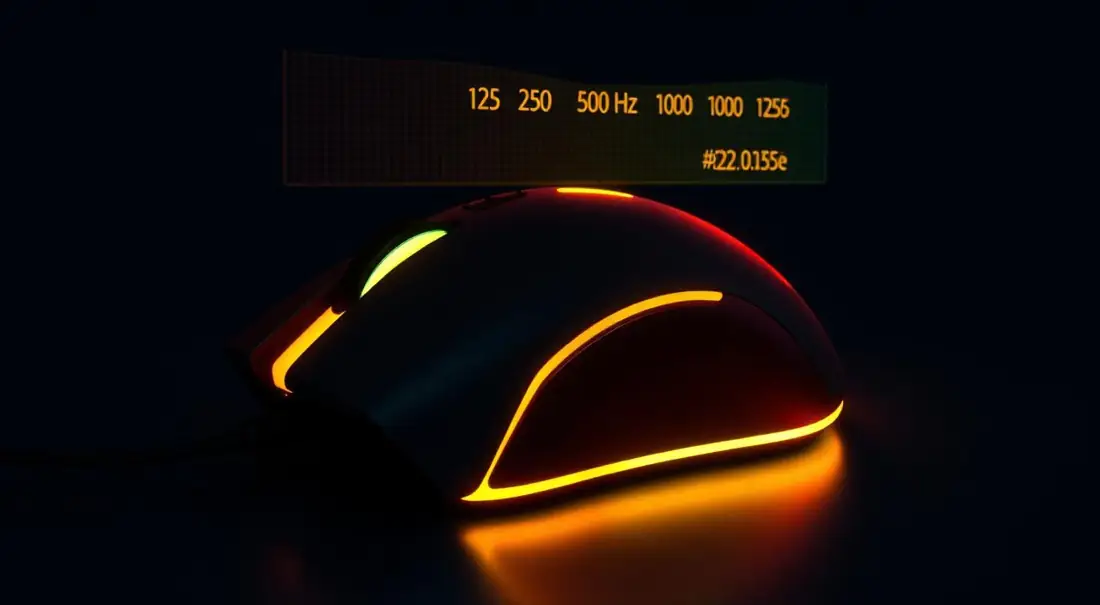
Gaming mouse with neon orange RGB lighting and a holographic polling rate frequency chart showing 125Hz, 500Hz, 1000Hz and 8000Hz
Polling rate determines how often your gaming mouse reports to your PC from 125Hz up to 8000Hz.

What Is Polling Rate and Why Should You Care?

Polling rate is how often your mouse updates its position, measured in Hz. For example, 125Hz updates 125 times per second, while 1000Hz updates 1000 times per second. Higher polling rates reduce delay and make cursor movement smoother, which is especially useful for gaming.

A 125Hz mouse has up to 8ms of delay before your movement shows up. A 1000Hz mouse cuts that to 1ms. You won't feel the difference while browsing, but in competitive FPS games those milliseconds stack up. Curious how fast your reflexes actually are? Try the Reaction Time Test to see if your mouse is holding you back.

How This Test Works (And Its Limitations)

This test measures how often mousemove events fire in your browser. The browser receives mouse input from the OS, which receives it from the mouse driver. Each layer can batch or throttle events, so the number you see here is typically lower than your mouse's actual hardware polling rate.

Still, this test is useful for catching problems. If you expect 1000Hz but see 125Hz, something's off - maybe your mouse is in power-saving mode, connected via Bluetooth instead of the USB dongle, or the polling rate setting didn't save.

The New Wave: 4000Hz and 8000Hz Mice

In the last couple of years, mouse manufacturers have been pushing polling rates way beyond 1000Hz. Razer's Viper V3 HyperSpeed supports 4000Hz, and some mice from brands like Finalmouse hit 8000Hz. The marketing sounds impressive, but does it actually matter?

For most gamers, 1000Hz is more than enough. Going from 125Hz to 1000Hz is a huge difference you'll actually feel. Going from 1000Hz to 4000Hz? Way more subtle - you might notice slightly less lag on fast flick shots, but it's right at the edge of what humans can perceive. Honestly, 1000Hz is plenty for 99% of people.

Getting the Most Out of Your Mouse

First thing: open your mouse software (Razer Synapse, Logitech G Hub, SteelSeries GG, etc.) and set the polling rate to 1000Hz. Most gaming mice support it but ship at 500Hz or lower by default. Takes 10 seconds to change and the improvement is real.

If you have a wireless mouse with a USB dongle, make sure you're using it. Bluetooth adds 10-30ms of latency compared to the 2.4GHz receiver which sits around 1-2ms. A lot of mice quietly switch to Bluetooth when the dongle isn't plugged in, and you might not even notice.

Firmware updates are worth checking for too. They can fix tracking quirks, improve wireless stability, and sometimes add features. And your mouse pad matters more than you'd expect. A dirty or worn-out pad makes your sensor work harder and can introduce jitter. Doesn't need to be expensive, just clean and consistent.

Frequently Asked Questions

What is mouse polling rate?

Polling rate is how often your mouse reports its position to your computer, measured in Hz. A 1000Hz polling rate means your mouse sends its position 1000 times per second. Higher polling rates mean lower input lag and smoother cursor movement - especially noticeable in fast-paced games.

How accurate is this browser-based test?

Browser-based polling rate tests have limitations. Browsers can't measure true hardware polling rate directly - they can only measure how often mousemove events fire, which is affected by browser processing, OS handling, and other factors. You'll typically see numbers lower than your actual hardware polling rate. For a rough check, it's useful; for exact numbers, use a dedicated tool.

What's a good polling rate for gaming?

Most gaming mice default to 1000Hz, which is excellent for all but the most demanding esports. Some newer mice offer 4000Hz or even 8000Hz, but the real-world difference above 1000Hz is minimal for most people. 500Hz is fine for casual gaming, and 125Hz (the default for many office mice) is noticeably slower.

Does higher polling rate use more CPU?

Technically yes - a higher polling rate means your CPU has to process more data. At 1000Hz it's negligible, but some 4000Hz+ mice can cause measurable CPU usage on older systems. For modern hardware, it's a non-issue.

How do I change my mouse's polling rate?

Most gaming mice let you change the polling rate through their companion software - Razer Synapse, Logitech G Hub, SteelSeries GG, etc. Some mice also have a physical switch on the bottom. If your mouse doesn't offer polling rate adjustment, it's probably a basic office mouse locked at 125Hz.

Does wireless mouse add more latency than wired?

Modern wireless gaming mice from brands like Logitech (Lightspeed), Razer (HyperSpeed), and SteelSeries have latency comparable to wired mice. Budget wireless mice and Bluetooth connections do add noticeable latency. If you're using Bluetooth for gaming, switch to the 2.4GHz USB receiver - it's much faster.

What's the relationship between polling rate and DPI?

They're independent settings. DPI (Dots Per Inch) controls how far your cursor moves per physical inch of mouse movement - higher DPI means more sensitive. Polling rate controls how often that position is reported. You want both optimized: high enough DPI for smooth tracking (800-1600 for most gamers) and 1000Hz polling for minimal lag.

Explore More Tools

Get the full picture of your setup. Each tool is free, runs in your browser, and needs zero downloads.