60Hz vs 144Hz: Is the Upgrade Worth It?
June 27, 2026
Introduction
So you've heard the buzz about 144Hz monitors.
Maybe your gamer friend won't stop talking about how "buttery smooth" everything looks. Or perhaps you've been browsing Amazon, wondering if spending more than $200 on a new screen will actually transform your experience.
Here's the good news I'm going to break this down in plain English. No tech talk. No confusing specs. Just the real stuff you actually need to know.
Let me give you the short version first:
60Hz is what you probably have right now. It works fine.
144Hz is smoother. Way smoother. You'll notice it immediately.
But not everyone needs it. And I'll tell you who should skip it.
Here's a simple way to think about it:
Going from 60Hz to 144Hz is like driving on a bumpy dirt road versus a freshly paved highway. You don't realize how rough the dirt road is until you hit that smooth pavement. That's exactly what this upgrade feels like.
Refresh Rate Basics: What Do 60Hz and 144Hz Actually Mean?
Let's start with the basics.
Refresh rate is how many times your monitor updates the image on screen per second. Measured in Hertz (Hz).
60Hz = 60 refreshes per second
144Hz = 144 refreshes per second
Simple math? 144Hz updates more than twice as often. That's 84 extra chances every second to show you a more current image.
Here's what that actually means for your eyes:
Refresh Rate - 60Hz - 144Hz
Refreshes Per Second - 60 - 144
Time Between Refreshes - 16.6ms - 6.9ms
That 9.7ms difference? That's where the magic happens. Your eyes can't see individual frames at either speed. But your brain? Oh, it absolutely notices the difference in motion clarity.
Think of it like a flipbook. 60 pages per second looks pretty smooth. But 144 pages per second? That's basically real life.
60Hz vs 144Hz: The Key Differences
Alright, let's talk about what you'll actually notice when you make the switch.
Smoothness
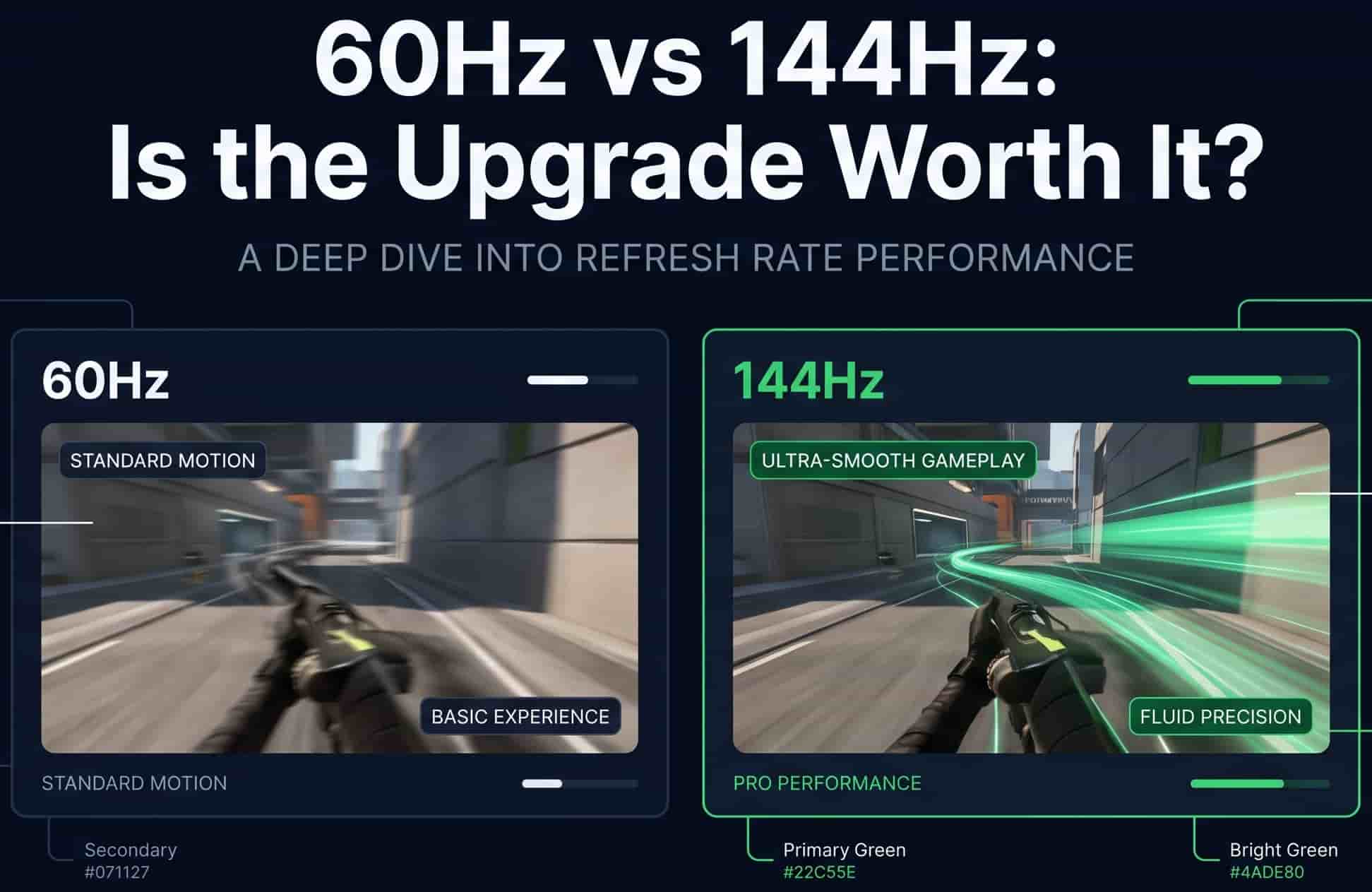
This is the big one. At 60Hz, moving objects have a slight "trail" effect. Not terrible, you're probably used to it. But at 144Hz? Motion feels incredibly smooth.
Motion Clarity
Ever tried to read text while scrolling quickly? At 60Hz, it's blurry and hard to track. At 144Hz, you can actually read it mid-scroll. Same with fast-moving objects in games they stay sharp instead of turning into a smeared mess.
Responsiveness
Here's where it gets interesting. 144Hz doesn't just look better it feels better. Your mouse cursor moves more precisely. Your clicks register with less delay. The connection between your hand and the screen feels tighter.
Frame Time Difference
60Hz = 16.6ms between frames
144Hz = 6.9ms between frames
That's a 9.7ms reduction in input lag. In competitive gaming? That's the difference between winning and losing a gunfight. In everyday use? It just feels snappier.
Side-by-side visual comparison: If you've got a 144Hz monitor, you'll instantly notice the smoother cursor movement. If you're on 60Hz and someone's playing on 144Hz next to you, you'll feel a little jealous. It's that noticeable.
4. Who Benefits Most from 144Hz?
Not everyone needs 144Hz. Let's be real about that. But if you fall into these categories, the upgrade will genuinely improve your experience.
Gamers (The Big One)
Competitive shooters (Valorant, CS2, Call of Duty):
This is where 144Hz shines brightest.
You'll track moving targets more easily.
Your reaction time improves not because you got faster, but because you see the enemy earlier.
Honestly, if you play these games seriously, 144Hz isn't optional. It's a competitive advantage.
Fast-paced action games (Apex Legends, Overwatch):
Same story. Fast movement benefits massively from high refresh rates.
Dodging, aiming, reacting it all feels more natural.
Casual gaming (RPGs, strategy games):
Nice to have? Yes.
Necessary? No.
If you're playing turn-based games or slow-paced RPGs, 60Hz is fine. The upgrade won't transform your experience.
Creative Professionals
Video editors and animators:
Higher refresh rates make scrubbing through timelines smoother.
Motion previews are more accurate.
Not a must-have, but definitely a quality-of-life upgrade.
Graphic designers and UI/UX designers:
Smoother cursor movement means more precise adjustments.
Scrolling through design tools feels less jarring.
Reduced eye strain during long sessions.
Everyday Users
Scrolling and browsing:
You'll notice smoother scrolling immediately.
Cursor movement feels more precise.
Honestly, once you go 144Hz for browsing, going back to 60Hz feels laggy.
Reduced eye strain:
Some people report less eye fatigue with higher refresh rates.
The motion is gentler on your eyes, especially during long sessions.
Who Probably Doesn't Need It
If you only use your computer for email, word processing, and light web browsing.
If you're on a tight budget and 60Hz monitors cost half the price.
If your PC can't even hit 60 FPS in the games you play.
If you genuinely don't notice the difference (some people genuinely can't tell).
The Hardware Question: Can Your PC Handle 144Hz?
Here's the brutal truth I've seen people miss: buying a 144Hz monitor doesn't magically give you 144 FPS.
Your PC has to generate those frames first. Your monitor just shows them.
Do You Need a Powerful GPU?
For gaming at 144Hz? Yes.
1080p gaming: You'll need at least an RTX 3060 or RX 6600 to push 144 FPS in most games.
1440p gaming: You'll want something beefier RTX 3070/4070 or RX 6800.
4K gaming at 144Hz: Prepare to spend serious money (RTX 4080/4090 tier).
Minimum Graphics Card Requirements for 144Hz
E-sports titles (Valorant, CS2, League of Legends):
A GTX 1060 or RX 580 can hit 144 FPS at medium settings.
Not too demanding.
Modern AAA games (Cyberpunk, Call of Duty, Starfield):
You'll need RTX 3060 / RX 6600 minimum for medium settings at 1080p.
High settings? RTX 3080 / RX 6800 territory.
How to Check If Your Current Setup Can Push 144 FPS
Method 1: Check in-game
Most games have built-in FPS counters.
Turn off VSync and see what numbers you're hitting.
Method 2: Use an FPS tool
Run a quick test at fps-tester.com to gauge your browser rendering speed.
For gaming performance, use tools like MSI Afterburner or the NVIDIA overlay.
Method 3: Look up benchmarks
YouTube search: "[Your GPU] [Game] 144 FPS"
See what others are hitting with similar hardware.
What Happens If Your FPS Is Lower Than Your Refresh Rate?
Short answer: It's still fine.
Your monitor will just show whatever frames your PC can produce.
You'll still get smoother motion compared to 60Hz if you're hitting above 60 FPS.
If you're stuck at 40 FPS, a 144Hz monitor won't magically fix that.
Verdict: If you're consistently below 100 FPS in your main games, upgrade your GPU before your monitor. The monitor won't fix a bottleneck.
144Hz vs 240Hz: Is Higher Always Better?
Now let's talk about the upgrade beyond 144Hz. Because you'll see monitors touting 240Hz, 360Hz, even 500Hz. And you might wonder should I skip 144Hz and go straight to those?
The Diminishing Returns Effect
Here's the thing about refresh rates: the jump from 60Hz to 144Hz is massive. The jump from 144Hz to 240Hz? Much smaller.
60Hz to 144Hz = 84% increase in smoothness.
144Hz to 240Hz = 66% increase.
240Hz to 360Hz = 50% increase.
Your eyes notice the first jump the most. After that, the improvements get harder and harder to perceive.
Why 60Hz → 144Hz Is the Biggest Jump
It's the sweet spot. 144Hz is:
Fast enough to feel incredibly smooth.
Affordable enough to be within reach for most budgets.
Supported by most mid-range hardware.
When 240Hz Actually Makes Sense
You're a competitive e-sports player (think pro or semi-pro).
You play fast-paced shooters at a high level.
You have the hardware to push 240+ FPS consistently.
You have the budget to spend extra for a relatively minor upgrade.
For 99% of people, 144Hz is the perfect balance between performance and price.
What to Look for When Buying a 144Hz Monitor
Okay, you've decided to make the leap. Now what do you actually buy?
Resolution
1080p (1920x1080):
Most affordable 144Hz monitors.
Easier to push 144 FPS with mid-range GPUs.
Good for competitive gaming.
1440p (2560x1440):
The sweet spot for many gamers.
Sharper image than 1080p.
Requires a stronger GPU to hit 144 FPS.
More expensive but worth it for the clarity.
4K (3840x2160):
Stunning visual quality.
Very demanding on your GPU.
144Hz 4K monitors are expensive.
Honestly, not recommended unless you have a high-end PC and budget.
Panel Types
TN (Twisted Nematic):
Fastest response times.
Cheapest.
Poor color accuracy and viewing angles.
Good for competitive gaming only.
IPS (In-Plane Switching):
Best color accuracy.
Good viewing angles.
Slightly slower response times than TN (but improving).
My recommendation for most people. Great all-rounder.
VA (Vertical Alignment):
Best contrast ratio.
Deep blacks.
Slower response times (potential ghosting).
Good for media consumption and RPGs.
Adaptive Sync
FreeSync (AMD):
Works with AMD GPUs.
Often cheaper.
Some FreeSync monitors work with NVIDIA GPUs too (check compatibility).
G-Sync (NVIDIA):
Works with NVIDIA GPUs.
More expensive.
Buttery smooth, no screen tearing.
Which one should you get?
Match it to your GPU. If you have an NVIDIA card, get G-Sync or a G-Sync Compatible monitor. If you have AMD, go FreeSync.
Response Time
Look for 1ms response time (or as close as possible).
This minimizes ghosting and motion blur.
TN panels typically hit 1ms easily. IPS panels can do 1ms now too.
Potential Downsides of Upgrading to 144Hz
Let's be honest it's not all sunshine and rainbows.
Higher Cost Compared to 60Hz Monitors
You'll spend at least double for 144Hz.
A decent 60Hz monitor costs $100–150.
A decent 144Hz monitor costs $200–350.
Increased Power Consumption
Higher refresh rates use more power.
Not a huge difference, but it's there.
If you're on a laptop, battery life will take a hit.
The "144Hz Curse"
This is a real thing. Once you get used to 144Hz, you can never go back.
60Hz will feel laggy and terrible.
You'll notice choppiness everywhere on your phone, on your work monitor, on TV.
It's a first-world problem, but it's genuinely annoying.
How to Test If 144Hz Is Right for You
Before you drop cash, do some homework.
Try It in Person at a Store
Go to a Best Buy, Micro Center, or electronics store.
Drag windows around on a 144Hz display.
Move the mouse quickly.
Scroll through web pages.
You'll notice the difference immediately.
Borrow a Friend's Monitor
If you know someone with a 144Hz monitor, ask to try it.
Game on it for an hour.
See if it feels worthwhile to you.
Use Online Tools to Check Your Current FPS
Run a quick test at fps-tester.com .
This shows your browser rendering speed.
Not a gaming benchmark, but a good indicator of system health.
Monitor Your Frame Rates in Your Favorite Games
Turn on your in-game FPS counter.
Play your main games.
See what numbers you're consistently hitting.
If you can't hit 100+ FPS, a 144Hz monitor won't help much.
Frequently Asked Questions (FAQ)
Is the difference between 60Hz and 144Hz noticeable?
Absolutely. It's one of the most noticeable PC upgrades you can make. The moment you move your mouse on a 144Hz screen, you'll see the difference.
Do I need 144 FPS to use a 144Hz monitor?
No. Your monitor will still work at lower frame rates. But to get the full benefit, you want your FPS as close to 144 as possible.
Is 144Hz worth it for non-gamers?
For everyday browsing and productivity? Yes, if you have the budget. The smoothness is a genuine quality-of-life improvement. But if money's tight, 60Hz is perfectly fine for office work.
Can I use a 144Hz monitor with a laptop?
Yes, as long as your laptop has the right ports:
DisplayPort
HDMI 2.0 or higher
Or USB-C with DisplayPort support
Check your laptop's specs before buying.
Will 144Hz reduce eye strain?
Some people report less eye strain. The smoother motion is gentler on your eyes. But it's not a cure-all proper lighting and taking breaks are still important.
Is 144Hz still worth it in 2026?
Yes. 144Hz has become the new standard for gaming monitors. Prices have dropped, technology has improved, and more games support higher frame rates than ever. It's a safe investment.
Conclusion
Alright, let's wrap this up with a straight answer.
Summary of Key Takeaways
60Hz = Smooth enough for most tasks. Affordable. Standard for office work and casual use.
144Hz = Noticeably smoother. Better motion clarity. Lower input lag. Transforms gaming.
The big jump is from 60Hz to 144Hz. After that, improvements are smaller.
Check your hardware before buying. If your PC can't push 100+ FPS, upgrade that first.
Match your monitor to your use case. Competitive gamers = 144Hz. Casual gamers = nice to have. Office workers = 60Hz is fine.
The Final Verdict: Is the Upgrade Worth It for You?
Yes, if...
You play competitive shooters or fast-paced games.
You have the hardware to push 100+ FPS.
You spend hours daily on your PC.
You have $200–350 to spare.
No, if...
You mainly use your PC for emails and web browsing.
Your PC can't hit decent frame rates.
Budget is tight and you'd rather upgrade other components.
You genuinely don't notice the difference (some people really don't).