FPS vs Refresh Rate: Why They're Not the Same
June 20, 2026
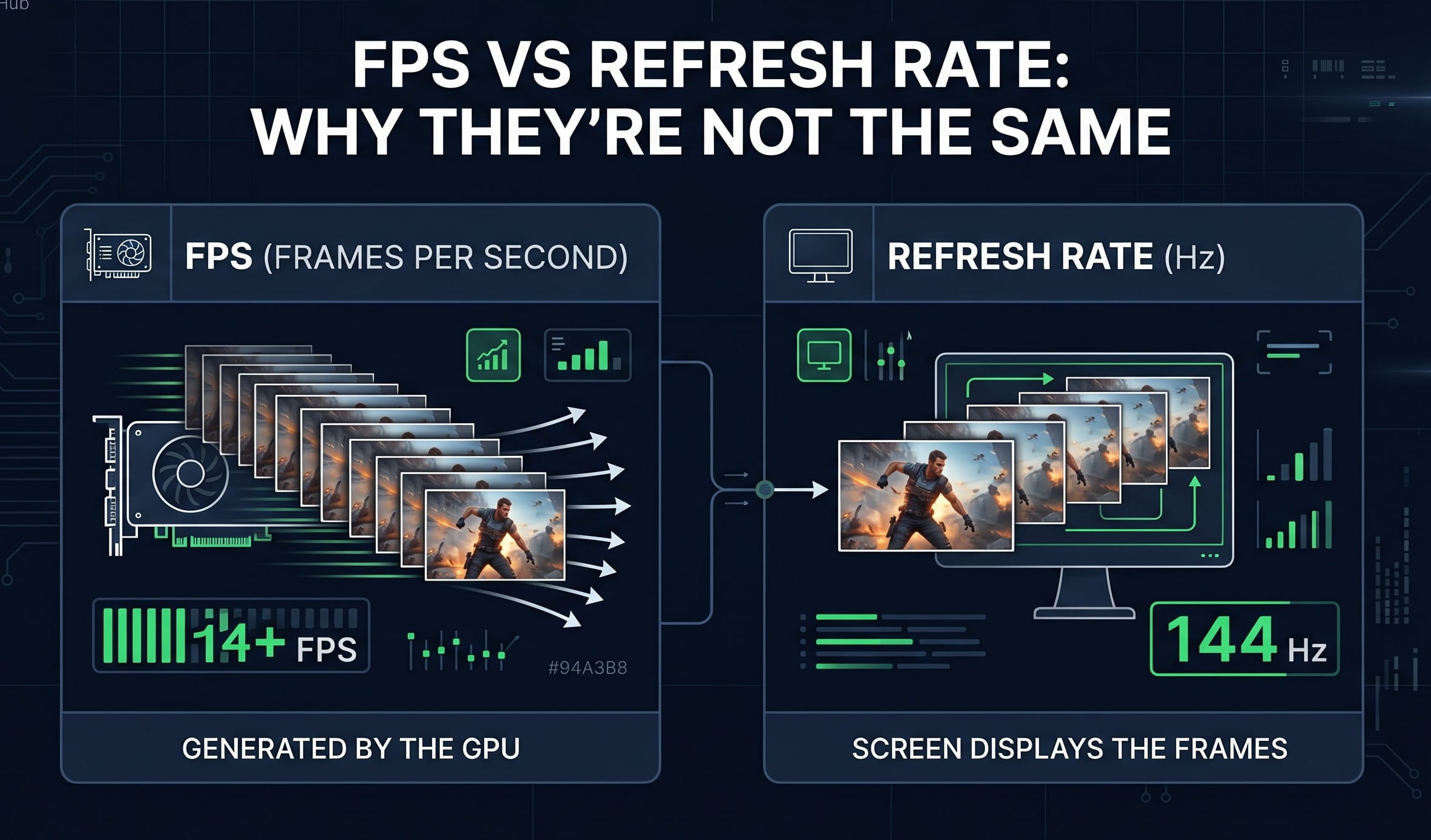
Hey. So, if you've ever shopped for a gaming PC or a new monitor, you’ve definitely seen the terms FPS and Refresh Rate tossed around. A lot of people honestly, myself included back in the day kind of assume they mean the exact same thing. Just "how smooth the game looks," right?
Well, not quite. They actually do two totally different jobs. Let's break it down without getting bogged down in the techy jargon.
What is FPS? (How Your PC Renders Frames)
FPS stands for Frames Per Second. The easiest way to picture it? Just think of one of those little paper flipbooks you probably played with as a kid.
The Digital Flipbook
A video game is really just a super-fast flipbook.
Your computer isn't making actual, real-life motion. It's just drawing a bunch of still pictures (we call them frames) one right after the other.
When it flips through them quickly, your eyes are tricked into seeing smooth movement. So, if a game runs at 60 FPS, your PC is drawing 60 unique pictures every single second. It's pretty wild when you think about it!
How It Works Behind the Scenes
To get that picture on your screen, your hardware does a quick little routine for every single frame:
The Brain (CPU): First, your computer's processor figures out what's going on in the game. Did you press jump? Where is the enemy standing? It just does the basic math.
The Artist (GPU): Then, your graphics card takes over. It takes that math and actually paints the picture adding all the colors, shadows, and lighting.
The Final Picture: Boom, the frame is done and sent out. Your PC then repeats this whole process over and over again, incredibly fast.
Why Do You Even Want High FPS?
It looks smoother: More pictures per second means the game stops looking choppy or laggy. It just feels so much more real.
It feels faster: When your PC makes frames faster, it also notices your mouse clicks and controller button presses faster. Everything just feels way more responsive to your touch.
What is Refresh Rate (Hz)? (How Your Monitor Displays Them)
So, if FPS is how fast your computer makes the pictures, the refresh rate is just how fast your screen can actually show them to you. Think of it as your monitor's speed limit.
The Screen's Speed Limit
We measure this speed in Hertz, or just "Hz" for short.
If you have a normal 60Hz monitor, that screen can only update itself 60 times in one second. No matter what.
Here's the big catch... if your super-fast PC is spitting out 200 FPS, but your monitor is only 60Hz? You're still only going to see 60 pictures a second. The screen literally can't keep up, so those extra frames are just wasted.
How the Screen Does Its Job
Imagine your monitor is someone painting a wall. Here is how it happens:
Grabbing the picture: The monitor takes the brand new frame your PC just made.
Painting it on: It quickly "paints" that picture onto your screen, usually zipping from the top right down to the bottom.
Doing it again: It wipes it clean and starts over. That "Hz" number is just how many times a second the monitor can finish painting that wall.
Why Should You Care?
It feels like butter: If you ever try a 144Hz screen, it updates way faster. Honestly, playing a game or even just moving your mouse around the desktop feels crazy smooth.
No more blur: When you turn around really fast in a video game, the picture stays sharp instead of turning into a smudgy, dizzy mess.
The Mismatch: When FPS and Hz Don't Align
Think of your PC and your monitor like two people working on an assembly line. If they aren't moving at the exact same speed... well, things start falling off the belt, right? That’s basically what happens to your game.
1. PC is too fast (Screen Tearing)
Imagine your computer is throwing pictures at your screen faster than your monitor can actually handle..
Your screen is only halfway done drawing the first picture when the computer through the next one in.
What happens? The screen gets confused and shows half of the old picture and half of the new one. It literally looks like the image is torn in half right across the middle. It's super distracting when you're trying to play.
2. PC is too slow (Stuttering & Lag)
Now imagine the opposite. You have a super-fast screen, but your computer is struggling to keep up with the game.
The screen is ready for the next picture, but the computer is like, "Hold on, I'm still drawing!"
Because the screen has to show something, it just shows the same picture twice while it waits.
To you, this looks like the game is freezing, stuttering, or just running in slow motion. It makes playing feel really clunky and frustrating.
The Fix: V-Sync, G-Sync, and FreeSync Explained
So, how do we get the computer and the screen to actually work together without messing up the picture? Over the years, hardware folks came up with a few clever tricks to fix the problem.
1. V-Sync (The Old Way)
Think of V-Sync like putting a strict speed limit on your computer.
It basically tells your super-fast PC, "Hey, wait for the screen to finish painting before you hand it another picture!"
The Good: It totally fixes that ugly torn screen effect.
The Bad: Because your computer is constantly pausing to wait, your mouse clicks or controller buttons can feel a little delayed. It just makes the game feel kinda heavy or slow.
2. G-Sync and FreeSync (The New, Awesome Way)
People really hated that weird button delay, so they invented something much better. Honestly, it's pretty brilliant.
Instead of forcing the computer to slow down, they made it so the screen can actually change its speed on the fly to match the computer.
How it works: If your computer is only making 55 pictures a second right now, your screen instantly shifts to 55Hz. If the computer suddenly speeds up to 90, the screen speeds up to 90. They stay perfectly in step.
The Result: Everything looks flawlessly smooth. No torn pictures, no stuttering, and no annoying delay when you press your buttons.
What’s the difference? They do the exact same thing. G-Sync is just the brand name for NVIDIA cards, and FreeSync is the brand name for AMD cards.
Conclusion: How to Balance Your Setup
To wrap things up, getting a smooth setup just means making sure your computer and screen match perfectly.
1. Check your speed first
See what your PC can actually do before buying anything new. Just run a quick check on an fps tester online or turn on your in-game counter.
2. Match your gear
Got a slower PC? A basic 60Hz screen is all you need.
Got a super-fast PC? You definitely need a fast monitor to actually see all that speed!
3. Turn on the settings
If your screen has G-Sync or FreeSync, remember to actually turn it on in your computer settings. It’s crazy how many people forget to click the one button that fixes everything.
That's really it. Balance those two things, and you're all set!