Game Stuttering and Micro-Stutter: Complete Fix Guide
July 6, 2026
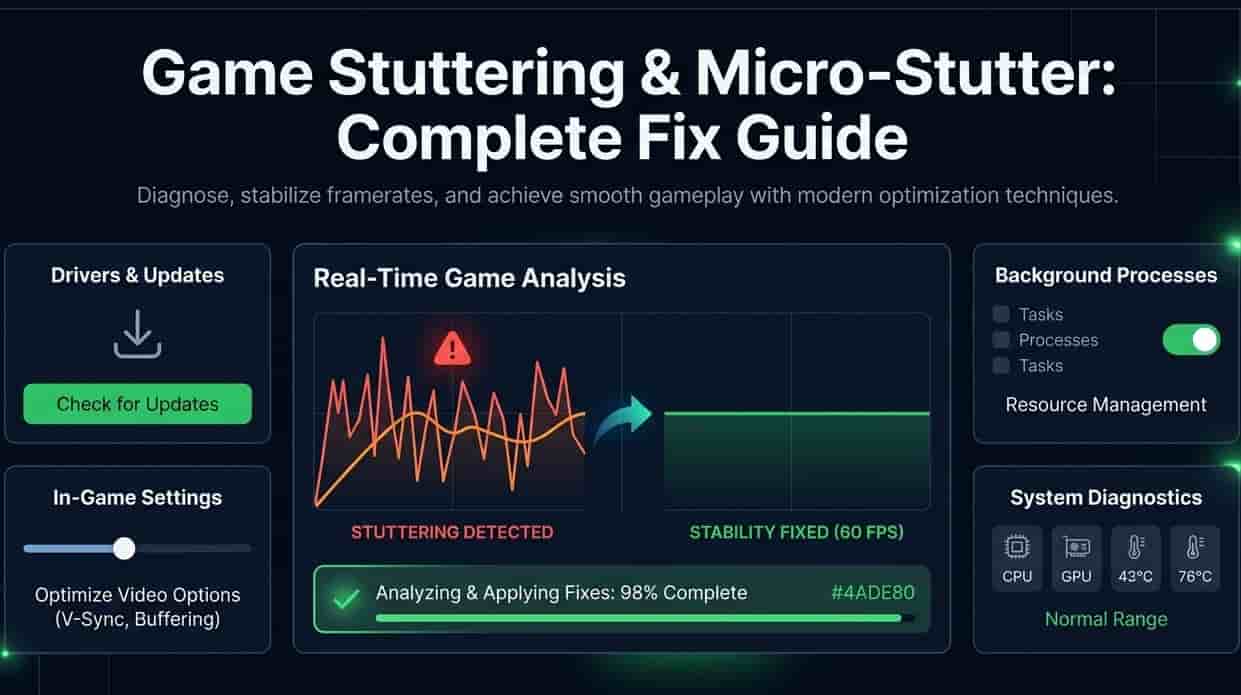
1. Introduction
You know that feeling? Everything's great in your game. You're in the zone. Then suddenly, freeze. Skip. You're a dead.
That's stuttering. And honestly? It's one of the most annoying things in gaming.
Here's something that might surprise you high-end PCs can stutter. Sometimes it's not even bad hardware. “Most of the time it’s an easy fix. I’ve been there myself and I know how frustrating it can be.
Here’s what we’re talking about today:
What stuttering and micro-stutter actually are
What causes them
How to fix them step by step
How to stop them from coming back
Let's get into it.
2. What Is Stuttering in Games?
Stuttering is exactly what it sounds like your game freezes for a split second. Then it jumps forward. It's like your game glitches out.
You'll notice:
Screen freezes briefly
Movement feels choppy
Your character teleports forward
Sometimes audio stutters too
The worst part? You can have 100+ FPS and still get stuttering. It's confusing, right? You see good numbers on your FPS counter, but the game feels terrible.
3. What Is Micro-Stutter?
Micro-stutter is like stuttering's smaller, sneakier cousin. It's harder to spot but just as frustrating.
What it feels like:
Tiny skips you barely notice
Movement feels slightly off
Game isn't smooth even with high FPS
Skips last only 50-200ms
Here's why micro-stutter is so annoying it's hard to diagnose. You can't quite put your finger on what's wrong. The game just feels... wrong.
What causes it:
Frame timing issues
Background apps interrupting
Poor game optimization
The technical bit is simple. Each frame takes a certain time to render. Say 16ms for 60 FPS. When some frames take 30ms and others take 16ms, you get micro-stutter. The inconsistency is what kills the smoothness.
4. Common Causes of Stuttering
Stuttering doesn't just happen for no reason. Here's what's usually behind it.
Hardware Problems:
Weak CPU that can't keep up
Not enough RAM (less than 16GB)
Games installed on slow HDD instead of SSD
Software Problems:
Old graphics drivers
Too many background apps running
Game overlays from Discord, Steam, or GeForce Experience
Settings Problems:
Graphics settings too high for your PC
Bad VSync implementation
Heat Problems:
CPU or GPU overheating
System slows down to cool off
5. How to Fix Stuttering and Micro-Stutter
Good news most stuttering is fixable. Try these steps in order.
Step 1: Update Your Graphics Drivers
Do this first. Always.
Why it works: New drivers fix bugs and improve game performance.
How to do it:
Go to Nvidia, AMD, or Intel website
Find your graphics card
Download the latest driver
Install and restart your PC
Quick tip: Look for the "Clean Install" option. It removes old settings that might be causing problems.
Step 2: Lower Your Graphics Settings
Your PC might be struggling more than you think.
Try lowering these first:
Shadow quality
Anti-aliasing
Texture quality
Post-processing effects
View distance
How to do it:
Open game settings
Lower one setting at a time
Test performance after each change
Honestly? You probably won't notice the visual difference. Medium settings often look the same as High during gameplay.
Step 3: Close Background Apps
Your PC has limited resources. Games need them all.
Close these:
Web browsers (they eat memory)
Discord and voice chat apps
Spotify or music apps
Windows updates running in background
Antivirus scans
Video streaming
How to check:
Press Ctrl + Alt + Delete
Open Task Manager
Sort by CPU or Memory usage
Close what you don't need
Step 4: Check CPU and GPU Usage
Sometimes one part of your PC is holding the other back.
What to look for:
CPU at 100% = CPU is the problem
GPU at 100% = GPU is the problem
Both under 80% = Something else is wrong
How to check:
Open Task Manager
Go to Performance tab
Play the game and watch the numbers
If CPU is at 100%: Lower settings like physics and shadows. Close background apps.
If GPU is at 100%: Lower graphics settings. Reduce resolution.
Step 5: Turn On Game Mode
Windows has a built-in tool for gaming.
What it does:
Prioritizes your game
Reduces background activity
Can improve performance
How to turn it on:
Open Settings
Go to Gaming
Click Game Mode
Turn it on
It takes 2 seconds and might help. Worth a try.
Step 6: Turn Off Overlays
Overlays are handy but can cause stuttering.
Turn these off:
Discord overlay
Steam overlay
Nvidia GeForce Experience
AMD Adrenalin
Xbox Game Bar
To turn off Discord overlay:
Open Discord Settings
Go to Game Overlay
Toggle off "Enable in-game overlay"
To turn off Steam overlay:
Open Steam Settings
Go to In-Game
Uncheck "Enable Steam Overlay"
Step 7: Move Games to SSD
This is a huge difference. Trust me.
Why SSD is better:
Way faster than HDD
Game assets load instantly
No loading stutters
If your game is on HDD:
Move it to SSD
Reinstall on SSD
Buy an SSD if you don't have one
SSDs are cheap now. Best upgrade you can make.
Step 8: Check Your Temperatures
Heat hurts performance.
Safe temperatures:
CPU: Under 80°C
GPU: Under 85°C
How to check:
Download MSI Afterburner
Check temps while gaming
If it's too hot:
Clean dust from fans
Improve airflow
Use a cooling pad for laptops
Lower graphics settings
Step 9: Verify Game Files
Sometimes game files get corrupted.
On Steam:
Right-click the game
Select Properties
Go to Local Files
Click "Verify Integrity"
On Epic Games:
Click three dots on the game
Select Manage
Click Verify
6. How to Prevent Stuttering in the Future
A little maintenance goes a long way.
Weekly:
Update drivers
Clean temporary files
Close unused programs before gaming
Monthly:
Clean dust from PC
Check temperatures
Update Windows
Before gaming:
Restart your PC
Close browsers and apps
Turn off Windows updates
7. Frequently Asked Questions
Why does my expensive PC still stutter?
Even good PCs can stutter. It's usually software problems old drivers or background apps.
Does more RAM fix stuttering?
Yes, if you have less than 16GB. If you already have 32GB, RAM isn't the problem.
Can Windows updates cause stuttering?
Yes. They can change settings or run in the background. Install them and restart.
Is stuttering a sign my PC is dying?
Usually not. Most stuttering is software-related. Try fixes first.
Does VSync cause stuttering?
Yes, if it's poorly implemented. Try turning it off or using G-Sync/FreeSync.
Why does only one game stutter?
Probably that game's problem. Check the game's forum for known fixes.
8. Conclusion
Let's keep this simple.
Stuttering is annoying. But it's almost always fixable.
Most stuttering is caused by:
Old drivers
Background apps
High settings
Slow storage
Overheating
The fix is usually:
Update drivers
Close background apps
Lower settings
Turn on Game Mode
Turn off overlays
Move to SSD
Check temps
Verify files
If none of that works:
Check if it's just one game
Search online for that game's fixes
Consider upgrading hardware
Don't give up. One of these fixes usually works.