How Browser Extensions Are Secretly Killing Your FPS
September 8, 2026
Introduction
You're playing a browser-based game, everything feels smooth, and then suddenly the game starts stuttering. The FPS drops for no obvious reason. Your first thought is usually the same as everyone else's:
"My PC must be struggling."
But sometimes the real culprit isn't your graphics card, CPU, or internet connection.
It's your browser extensions.
A lot of gamers install extensions without thinking twice. Ad blockers, password managers, AI assistants, VPNs, shopping tools, screenshot appsthe list goes on. Each one seems harmless on its own.
The problem is that every extension consumes resources. Some use very little. Others constantly run scripts, scan web pages, track activity, or communicate with external servers in the background.
When you're playing browser-based games, those extra tasks can quietly eat into the resources your game needs.
Let's look at how browser extensions affect FPS and what you can do about it.
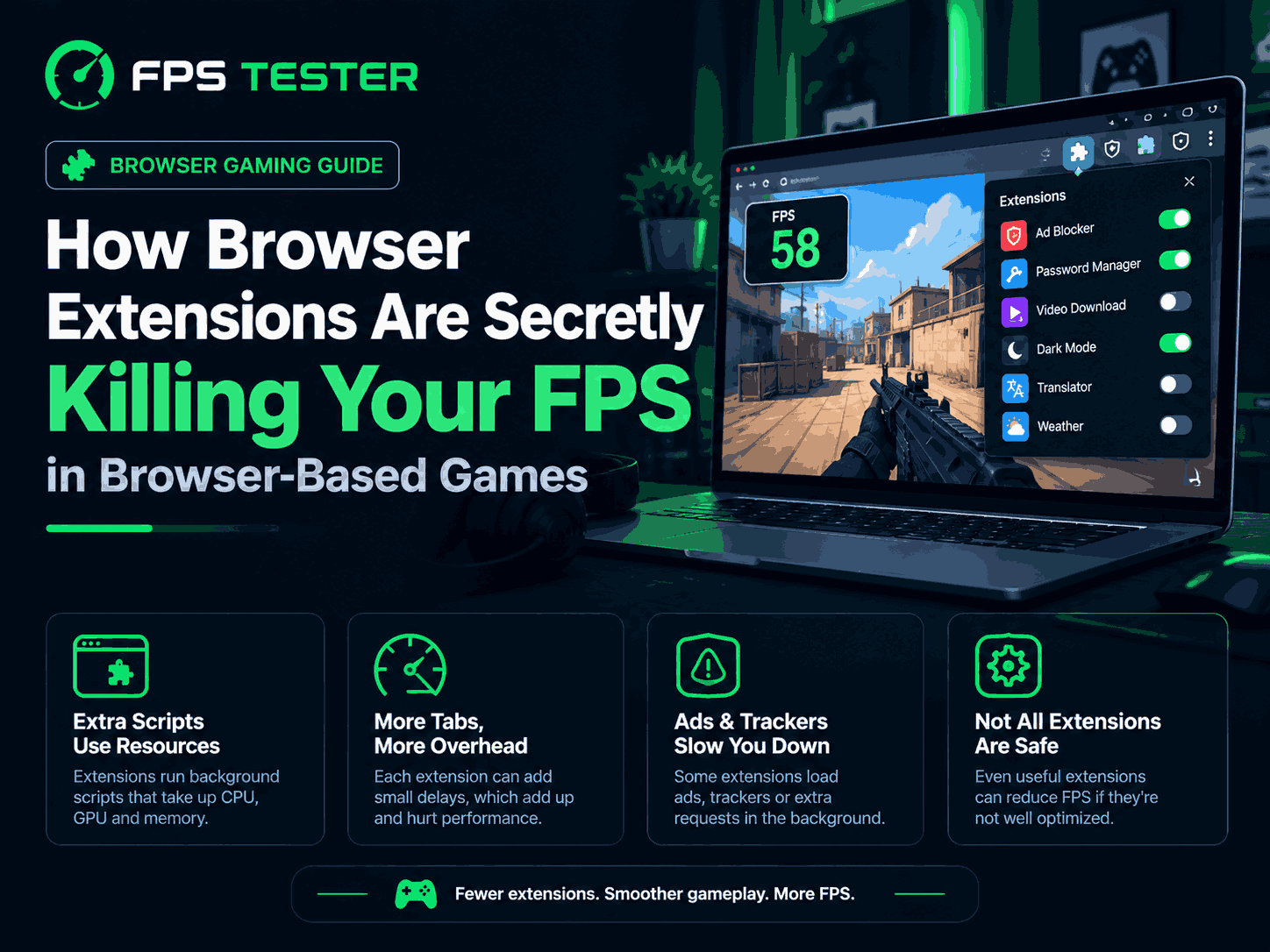
1. Can Browser Extensions Really Affect FPS?The short answer is yes.
A browser extension isn't just a button sitting in your toolbar. Most extensions are active software running inside your browser.
Many extensions:
Monitor websites
Analyze page content
Run background scripts
Check network activity
Sync data with cloud servers
Normally you don't notice this.
But browser games already rely heavily on your browser's resources. Adding several active extensions creates additional workload.
The result can be:
Lower FPS
More stuttering
Increased memory usage
Slower browser performance
The impact may be small on a high-end PC, but it becomes much more noticeable on mid-range or older systems.
2. Why Browser Games Need More Resources Than You ThinkMany people assume browser games are lightweight.
That's not always true.
Modern browser games have become surprisingly advanced.
Some browser games use:
WebGL graphics
Complex physics systems
Real-time multiplayer features
Large game worlds
High-resolution assets
In many cases, a browser game is doing similar work to a downloaded game.
Your browser already needs resources for:
Rendering graphics
Managing memory
Processing game logic
Handling network traffic
Now add ten extensions on top of that.
Things can get crowded pretty quickly.
3. The Biggest FPS-Killing Browser ExtensionsNot every extension affects performance equally.
Some are relatively lightweight.
Others can be surprisingly demanding.
Ad Blockers
This might surprise some people.
Good ad blockers are useful, but they constantly analyze page elements and network requests.
While the performance impact is usually small, having multiple ad blockers installed at the same time can create unnecessary overhead.
VPN Extensions
VPN extensions often encrypt traffic and route data through remote servers.
This doesn't always affect FPS directly, but it can increase browser workload and sometimes introduce additional latency.
Password Managers
Password managers are convenient.
However, many continuously scan pages looking for login forms and account fields.
The impact is usually minor, but multiple extensions doing similar tasks can add up.
AI Browser Assistants
AI tools have become incredibly popular.
Many AI extensions actively monitor page content, generate suggestions, and interact with websites.
Because of this, some AI assistants use more resources than traditional extensions.
Shopping Extensions
Price trackers and coupon finders often run scripts on almost every page you visit.
Even when you're not shopping, some remain active in the background.
Screenshot and Recording Extensions
Recording tools and capture extensions can consume CPU and memory resources.
If you're gaming while recording or capturing screenshots, the impact can become more noticeable.
4. How Extensions Actually Reduce FPSLet's keep this simple.
Browser extensions don't directly tell your game to run slower.
Instead, they compete for the same resources.
Increased CPU Usage
Many extensions constantly process information.
That means your CPU has additional work to do.
When CPU usage increases, browser games may have fewer resources available.
Higher RAM Consumption
Every active extension uses memory.
One extension might only use a small amount.
Ten or fifteen extensions can consume hundreds of megabytes of RAM.
When available memory decreases, performance can suffer.
Background Scripts
Some extensions continuously run scripts behind the scenes.
You don't see them.
You don't interact with them.
But they're still active.
And active software consumes resources.
Extra Network Activity
Certain extensions constantly communicate with online services.
This can increase browser activity and sometimes create additional delays.
5. Signs That Extensions Are Hurting Your PerformanceThe tricky part is that browser extensions rarely announce themselves as the problem.
Instead, you'll notice symptoms.
Random FPS Drops
Your game runs smoothly one moment and struggles the next.
Stuttering
Even when FPS looks acceptable, gameplay may feel uneven.
Slow Browser Response
Opening tabs feels slower.
Menus become less responsive.
Everything feels slightly sluggish.
High Memory Usage
Your browser suddenly uses much more RAM than expected.
Increased CPU Usage
Fans spin faster.
CPU usage remains unusually high.
The browser becomes heavier than normal.
6. A Simple Real-World TestHere's something interesting.
Many gamers have tested browser performance with and without extensions.
The results are often surprising.
Browser With No Extensions
Typical results:
Lower memory usage
Lower CPU usage
More stable FPS
Fewer stutters
Browser With 5 Extensions
Typical results:
Slight increase in resource usage
Small FPS reduction
Generally still playable
Browser With 10+ Extensions
Typical results:
Noticeably higher RAM usage
More CPU activity
Greater chance of FPS drops
Increased stuttering
The exact numbers vary, but the pattern remains consistent.
More active extensions generally mean more resource consumption.
7. How to Check If Extensions Are the ProblemBefore blaming your hardware, run a few simple tests.
Step 1: Disable All Extensions
Turn off every extension temporarily.
Then launch your browser game.
Pay attention to:
FPS
Smoothness
Loading times
Step 2: Enable Extensions One by One
Turn extensions back on individually.
This makes it easier to identify which one causes problems.
Step 3: Check Browser Task Manager
Most browsers include a built-in task manager.
This can show:
CPU usage
RAM usage
Resource-heavy extensions
Sometimes the results are surprising.
An extension you rarely use may be consuming far more resources than expected.
Step 4: Compare Results
Compare your FPS with:
All extensions enabled
Most extensions disabled
Only essential extensions enabled
The difference often becomes obvious.
8. Easy Ways to Improve FPSThe good news is that fixing extension-related performance issues is usually simple.
Remove Unused Extensions
Be honest.
Most people have extensions they haven't used in months.
If you don't need it, remove it.
Disable Extensions While Gaming
Some extensions don't need to run all the time.
You can enable them only when necessary.
Use a Separate Gaming Browser Profile
This is one of the best solutions.
Create a dedicated gaming profile with:
Minimal extensions
Clean settings
Fewer background processes
Many gamers notice immediate improvements.
Close Unnecessary Tabs
Every open tab consumes resources.
Twenty tabs plus a browser game plus several extensions can create a surprisingly heavy workload.
Keep Your Browser Updated
Browser updates often include:
Performance improvements
Memory optimizations
Better resource management
An outdated browser can sometimes create issues that have already been fixed.
9. Are Some Browsers Better for Gaming?This question comes up a lot.
The answer depends on your system and usage.
Google Chrome
Excellent compatibility
Large extension library
Can become memory-hungry with many tabs
Microsoft Edge
Good performance
Efficient memory management
Based on Chromium
Many gamers report solid results.
Firefox
Strong privacy features
Good performance
Different extension ecosystem
Opera GX
Opera GX is marketed specifically toward gamers.
Features include:
RAM limiters
CPU limiters
Gaming-focused tools
Some users like it, while others see little difference compared to Chrome or Edge.
10. When Extensions Are NOT the ProblemSometimes extensions get blamed unfairly.
The actual issue may be something else.
Weak Hardware
Older CPUs and low-memory systems can struggle regardless of extensions.
Outdated Browser
Performance bugs can affect gaming.
Too Many Open Tabs
Open enough tabs and almost any browser starts slowing down.
Background Applications
Discord, recording software, launchers, and other apps also consume resources.
Internet Issues
Online games depend on stable connections.
Lag is not always related to FPS.
Frequently Asked QuestionsDo browser extensions reduce FPS?
Yes. Some extensions consume CPU, RAM, and browser resources, which can reduce FPS in browser-based games.
Which extensions affect gaming performance the most?
VPN extensions, AI assistants, recording tools, and resource-heavy browser utilities typically have the largest impact.
Does an ad blocker lower FPS?
Usually only slightly. However, running multiple ad blockers at the same time can create unnecessary overhead.
How many browser extensions are too many?
There isn't a fixed number, but keeping only essential extensions active is generally the best approach.
Should I disable all extensions while gaming?
Not necessarily. Start by disabling unnecessary extensions and test performance improvements.
Which browser is best for browser games?
Chrome, Edge, Firefox, and Opera GX can all perform well. The biggest factor is often how many extensions and background processes are running.
Can browser extensions increase RAM usage?
Yes. Every extension consumes memory, and multiple active extensions can significantly increase RAM usage.
How do I know which extension is causing FPS drops?
Disable all extensions first, then enable them one at a time while monitoring performance.
ConclusionBrowser extensions are one of the most overlooked causes of FPS problems in browser-based games.
Most people immediately blame their hardware, internet connection, or the game itself. Sometimes those things are responsible. But surprisingly often, the issue is sitting quietly in the browser toolbar.
The more extensions you install, the more resources your browser needs. That doesn't automatically mean you'll have terrible performance, but it does increase the chances of lower FPS, stuttering, and slower gameplay.
The solution is simple.
Keep only the extensions you actually need. Disable unnecessary ones while gaming. Consider using a separate browser profile dedicated to gaming.
You might not gain 50 FPS overnight.
But you could recover enough performance to make your browser games feel noticeably smootherand that's always worth a few minutes of cleanup.