Laptop vs Desktop: Why the "Same" Specs Give You Different FPS
August 29, 2026
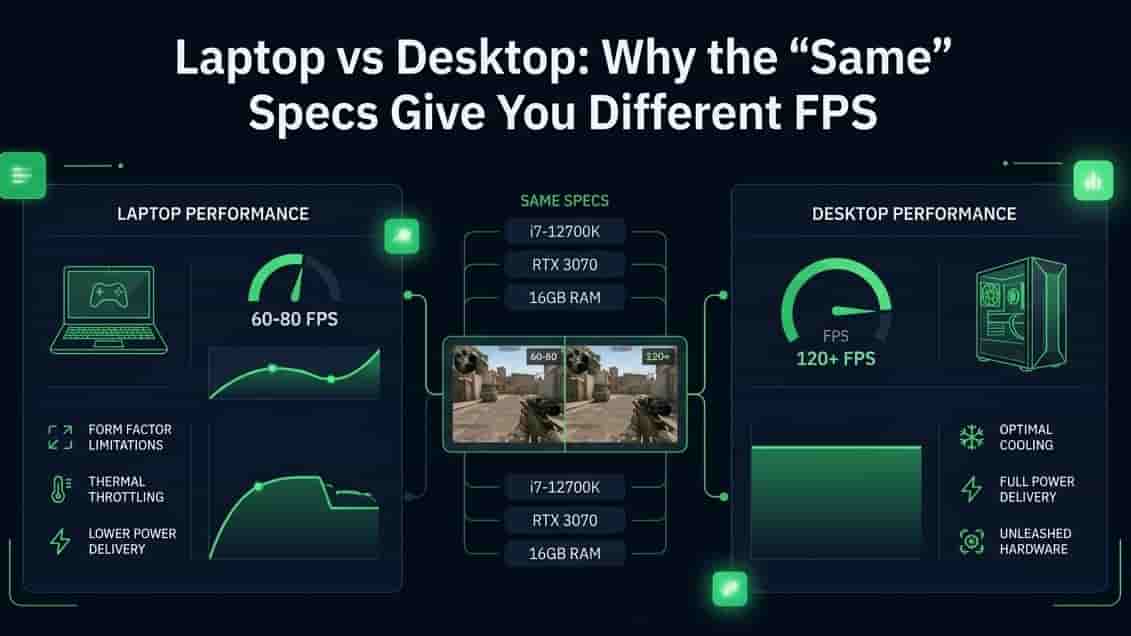
You check the spec sheet. Laptop A says RTX 4060. Your desktop says RTX 4060 too.
On paper, it's the exact same graphics card.
So why does your desktop pull noticeably higher FPS in the same game, at the same settings?
This trips people up constantly. And the confusion is completely fair. A GPU name on a spec sheet looks like a fixed thing, like a car model. It isn't. The same GPU name can behave like a completely different piece of hardware depending on where it's installed.
Here's what's actually going on, broken down piece by piece.
The GPU name is not the whole story
When NVIDIA or AMD makes a laptop GPU, they don't hand laptop makers one fixed chip with one fixed performance level.
They hand them a chip that can run at a range of power levels. It's the laptop manufacturer who decides where in that range their specific laptop will run it.
That power setting has a name: TGP, or Total Graphics Power. It's simply how many watts the laptop is allowed to feed the GPU.
A thin, light laptop with weak cooling might run an RTX 4060 at a low TGP. A thick gaming laptop with big fans and heatsinks might run that exact same RTX 4060 at a much higher TGP.
Same chip. Same name on the box. Genuinely different real-world speed.
That's because a GPU running at a higher power ceiling can hold higher clock speeds for longer, and clock speed is a big part of what turns into FPS.
The gap this creates isn't small. Depending on the specific GPU and how it's configured, two laptops with the identically-named graphics card can differ in gaming performance by well over 10%, sometimes over 30%. That's two laptops. Before you even compare a laptop GPU to its desktop counterpart.
A real example, so this isn't just theory
Take the RTX 4060. In one laptop, it might be configured to run at 140 watts. In a thinner laptop, the same GPU might be capped at 115 watts.
Reviewers testing this exact scenario have measured close to a 10% real FPS difference between those two configurations, in the same games, at the same settings. Same GPU model. Same generation. Same architecture. Just a different power ceiling.
Now stretch that comparison to a desktop. Desktop versions of popular GPUs are often allowed to run at noticeably higher wattage than even the best-cooled laptop version of the same chip. That's where laptop-vs-laptop gaps of 10% turn into laptop-vs-desktop gaps of 20%, 30%, or more.
Desktop GPUs simply aren't under the same restriction
A desktop GPU lives inside a full-size case with a dedicated power supply and real airflow.
Nobody is trying to squeeze it into something you carry in a backpack.
Because of that, desktop GPUs are typically allowed to run at much higher power levels than any laptop version of the same chip. Sometimes two or three times higher.
So when you compare a laptop RTX 4060 to a desktop RTX 4060, you're not really comparing two versions of the same product. You're comparing a power-limited mobile chip to a chip that's free to run near its true potential.
That's the single biggest reason your "same GPU" laptop and desktop don't perform the same. And that's before anything else on this list even comes into play.
Heat changes everything once you actually start playing
Here's something a spec sheet will never show you: how a machine performs after 20 minutes, not after 20 seconds.
Desktops have room. Big cases. Multiple fans. Lots of space for hot air to move away from the components.
Laptops have to cram a CPU, a GPU, and cooling for both into a space you can close like a book. When you push a laptop hard for a while, it heats up faster and has far less room to dissipate that heat.
When a laptop's CPU or GPU gets too hot, it does something completely intentional called thermal throttling. It deliberately lowers its own clock speed to cool back down and avoid damage.
This isn't a malfunction. It's the system protecting itself.
But it means your FPS can look completely fine for the first minute of a match, then quietly drop as the session goes on. A desktop with the same components rarely needs to throttle nearly as aggressively, because it simply has more room to keep itself cool.
If you've ever noticed a game feels smooth right after launch but starts stuttering 20-30 minutes in, this is very likely why.
Your laptop might be gaming on the wrong graphics chip entirely
This one catches a lot of people off guard.
Most gaming laptops actually have two GPUs, not one. There's a weaker graphics chip built into the CPU itself, called integrated graphics. And a separate, more powerful graphics card, called dedicated or discrete graphics, sitting alongside it.
Windows is supposed to automatically decide which one handles which app. This system is usually called Optimus on NVIDIA laptops, or a similar switchable graphics setup on AMD systems.
Most of the time it works fine. But sometimes it picks wrong, and your game quietly runs on the weak integrated graphics instead of your actual gaming GPU.
If that happens, your FPS can be dramatically lower than it should be. And it'll look like your "good" GPU simply isn't performing, when really it isn't even being used.
There's also a hardware-level version of this issue. Some laptops have something called a MUX switch, which lets the dedicated GPU send its picture directly to the screen. Laptops without one have to route every frame through the integrated GPU first. That adds a small but real performance cost, even when the dedicated GPU is doing the actual rendering.
Power mode matters more on a laptop than people realize
On a desktop, "plugged in" is just the normal state of existing. There's no separate "battery mode" quietly capping your performance in the background.
Laptops are different.
Most gaming laptops have a battery-saving power mode that deliberately reduces CPU and GPU speed to make the battery last longer. If you're gaming on battery, or even plugged in but still set to a balanced or power-saving profile instead of a performance one, your laptop may be running well below what its hardware is actually capable of.
This is one of the easiest things to fix. It's also one of the most commonly overlooked, because most people never open their power settings after setting up a new laptop.
RAM and storage aren't always as equal as the spec sheet implies
Two machines can list "16GB RAM" and still perform differently.
It depends on the RAM's speed and how many memory channels it's running in. Desktops generally have more flexibility here, since their memory is often easier to upgrade or configure than a laptop's memory, which in some budget models is soldered directly to the motherboard or limited to a single channel.
The same goes for storage. A slow drive can cause longer loading stutters or texture pop-in in some games, even if it doesn't change your raw FPS number directly.
None of this is usually the main reason for a big FPS gap. But it can stack on top of the power and thermal differences above, and make the overall experience feel worse than the FPS counter alone suggests.
Putting it together: why your numbers don't match
If you're seeing a real difference between a laptop and desktop with supposedly matching specs, it's almost always some combination of these:

Common myths worth clearing up
"Same GPU name means same performance." Not true, as shown above. The name tells you the chip family. It doesn't tell you the power level it's running at.
"A more expensive laptop always means a stronger GPU." Not always. A cheaper laptop with better cooling and a higher TGP setting can genuinely outperform a pricier laptop with the same GPU squeezed into a thinner, hotter chassis.
"Upgrading laptop RAM will close the gap with a desktop." It helps a little in some cases, but it won't touch the power and thermal gap, which is usually the bigger factor by far.
How to actually check what's happening on your machine
Instead of guessing which of these applies to you, test it directly. Each step takes a minute or two.
Run our FPS Test right after starting up, then again after 15 to 20 minutes of use. If your number drops noticeably over time, that's a strong sign of thermal throttling, not a GPU limitation.
Check your GPU control panel, either NVIDIA Control Panel or AMD Software, for per-app graphics settings. Confirm your game is set to use the dedicated GPU, not the integrated one.
Check your Windows power mode. It's usually found in Settings under Power. Make sure it's set to Best Performance or High Performance while gaming, not balanced or power-saving.
Make sure you're plugged in. Many laptops silently cap GPU performance on battery, regardless of your power mode setting.
Look up your specific laptop's GPU TGP. It's usually listed on the manufacturer's spec page or in independent laptop reviews. Compare it to your desktop's GPU power draw. A large gap explains a large chunk of the FPS difference on its own.
What you can actually do about it
You can't turn a laptop GPU into a desktop GPU. That part is physics, not a setting.
But a few things are genuinely within your control:
Use a cooling pad if your laptop tends to throttle during long sessions. It won't remove the power gap, but it can help the GPU hold its boost clocks longer.
Always game plugged in, on your highest performance power mode.
Force the dedicated GPU for your games in the control panel, instead of trusting automatic switching.
Clean out dust from your laptop's fans and vents every few months. A laptop running hotter than it should throttle sooner and harder.
Set realistic expectations when buying. If portability matters to you, accept the performance tradeoff going in, rather than being surprised by it later.
Frequently asked questions
Can I fix the TGP limit on my laptop myself? Not directly. TGP is set by the laptop manufacturer in the firmware, and it isn't something you can safely unlock or override. Some gaming laptops let you switch between preset power modes that adjust TGP within a factory-approved range, but you can't push a laptop GPU past what the manufacturer designed the cooling system to handle.
Will an external GPU (eGPU) give me desktop-level performance? It gets you closer, but not all the way there. An eGPU lets you use a real desktop graphics card with a laptop, which removes the TGP problem entirely. But you're often limited by the connection between the laptop and the eGPU enclosure, which can still hold back performance compared to a GPU installed directly in a desktop.
Is it normal for FPS to drop after playing for a while, or is something wrong? Some drop is normal, especially in a laptop, and it's usually thermal throttling doing its job. A small, steady drop that levels off is expected. A big, sudden drop, or one that keeps getting worse the longer you play, is more likely a sign of dust buildup, bad airflow, or old thermal paste that needs replacing.
Does a higher-end laptop CPU make up for a weaker GPU setup? Only in games that are more CPU-dependent, like some strategy or simulation titles. In most modern games, especially at higher resolutions, the GPU is doing most of the heavy lifting, so a strong CPU paired with a power-limited GPU still won't match a desktop with a fully unlocked GPU.
Why does the same laptop perform differently at different times of day? This is usually room temperature and airflow, not anything wrong with the laptop. A laptop working hard in a warm room, or sitting on a soft surface like a bed that blocks its vents, will throttle sooner than the same laptop on a hard desk in a cooler room.
The simple version
A GPU name on a spec sheet is a starting point, not a guarantee.
The same chip can run faster or slower depending on how much power it's allowed to draw, how well it's cooled, which GPU is actually doing the work, and what power mode the system is in.
Laptops juggle all of these limitations at once to stay thin, quiet, and portable. Desktops mostly don't have to.
That's not a flaw in your laptop. It's the physical tradeoff that comes with portability. And once you know where to look, most of the gap stops being a mystery.