Setting Up a New Gaming Monitor: The First 10 Minutes Matter Most
August 14, 2026
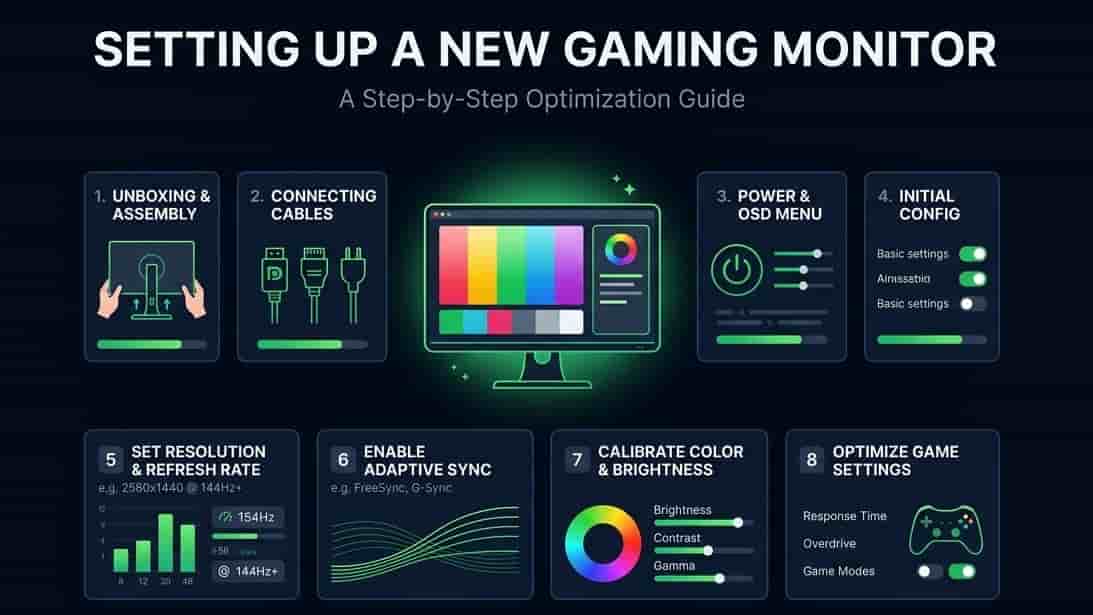
New monitor's out of the box, plugged in, looking shiny. Feels done, right? Not quite. There's a short window right after unboxing where checking a few things actually matters, mostly because a lot of stores won't take returns after a couple weeks, and some of these problems only show up once you actually go looking for them.
Ten minutes now can save you a headache later. Here's the whole gaming monitor first time setup, start to finish.
Your New Monitor Checklist, At a Glance
Quick version before we get into each one:
Turn on your actual refresh rate
Turn on G-Sync or FreeSync
Check for dead pixels
Set your actual display settings
Calibrate the colors, at least roughly
Do all of this before your return window closes
Now let's go through each step properly.
How to Enable 144Hz (Or Whatever Your Max Refresh Rate Is)
This one trips up more people than you'd think. Monitors don't always default to their highest refresh rate out of the box, sometimes Windows just leaves it at 60Hz even on a 144Hz or 240Hz panel.
Here's how to check and fix it:
Right-click your desktop, go to Display Settings
Scroll down to Advanced Display Settings
Find the refresh rate dropdown and set it to your monitor's actual max
If your monitor's rated for 144Hz and this menu only shows 60Hz as an option, double check you're using the right cable and port, some HDMI cables genuinely can't carry higher refresh rates.
How to Set Up G-Sync or FreeSync
While you're in there, turn this on too. It's the thing that actually stops your screen from tearing when your frame rate and refresh rate don't line up.
Enable it in your monitor's on-screen menu first, usually under a "Gaming" or "Display" section
Then enable it again in your GPU's control panel, NVIDIA Control Panel for G-Sync, AMD Software for FreeSync
Both steps matter, missing either one means it won't actually work
How to Check for Dead Pixels on a New Monitor
Genuinely one of the most important checks, and the easiest one to skip because who thinks to look. Dead pixels are way easier to spot and get replaced within a return window than months later.
Display a full black screen, then a full white screen, then pure red, green, and blue, one at a time
Look closely for any dot that stays a different color than the rest of the screen
A stuck pixel might flicker or show a wrong color, a dead pixel just stays black
Our Dead Pixel Test does exactly this for you, way faster than manually cycling through colors yourself.
New Monitor Screen Burn-in Test
Not something you'd worry about day one, but worth knowing, if you're running an OLED monitor specifically, avoid leaving a static image on screen for hours during this first setup process. LCD and most gaming monitors don't have this issue, mainly an OLED thing.
Best Display Settings for Gaming Monitor
A few settings worth adjusting beyond just refresh rate:
Response time (overdrive) - usually has a few levels, too high can cause ghosting artifacts, too low leaves motion blur, the middle setting is often the sweet spot
Game Mode - reduces input lag by skipping unnecessary picture processing, turn it on
Brightness - factory default is often way too bright for gaming in a dim room, worth turning down
Sharpness - leave near default, cranking it up doesn't add real detail, just adds a weird edge effect
Monitor Color Calibration Setup
You don't need to go full professional colorimeter here, unless you're doing color-sensitive work. But a rough calibration still helps:
Use your OS's built-in calibration tool, Windows and Mac both have one
Adjust brightness and contrast until you can distinguish near-black and near-white shades without them blending together
If colors look off, too warm, too cool, adjust the color temperature setting in your monitor's menu, not just software side
Don't Forget the Return Window Monitor Test
Whatever you do, don't put this off. Most retailers give you somewhere between 15 and 30 days to return something, and a lot of monitor issues, dead pixels, backlight bleed, refresh rate not hitting spec, are way easier to prove and return within that window than trying to deal with a manufacturer warranty claim later.
Run through this whole checklist within the first day or two if you can. Not the most exciting way to spend ten minutes with a new toy, but it's the difference between an easy exchange and being stuck with a flawed monitor.
FAQ
Do I really need to manually enable 144Hz?
Often, yes. A lot of monitors default to 60Hz until you change it in your display settings, even if the panel supports much higher.
Can I use G-Sync and FreeSync at the same time?
No, you use whichever matches your GPU, G-Sync for NVIDIA, FreeSync for AMD, though many monitors support both depending on what graphics card you plug in.
How long should I wait before checking for dead pixels?
Don't wait, check within the first day or two while your return window is still wide open.
Is factory color calibration good enough?
For most people, close enough, but a quick manual pass usually improves things a bit, especially brightness, which tends to run high out of the box.
What's the difference between G-Sync and "G-Sync Compatible"?
True G-Sync uses a dedicated hardware module NVIDIA builds into the monitor, which tends to cost more. G-Sync Compatible just means NVIDIA tested a regular FreeSync monitor and confirmed it plays nicely with G-Sync software. Functionally, most people won't notice much difference day to day.
Do I need a special cable for 144Hz or higher refresh rates?
Sometimes, yeah. Older HDMI cables can technically work but might not carry enough bandwidth for higher refresh rates at higher resolutions. DisplayPort is generally the safer bet for anything above 60Hz, especially at 1440p or 4K.
What if my monitor doesn't have a Game Mode option?
Not every monitor uses that exact name, some call it "Fast Response" or something similar. Check the on-screen menu under picture or display settings, it's usually there under a different label even when "Game Mode" specifically isn't.
How do I know if dead pixels are covered under warranty?
Depends on the manufacturer, and it varies more than you'd expect. Some brands cover a single dead pixel, others require a minimum number before they'll replace anything. Worth checking your specific brand's policy before assuming it's covered.
Should I calibrate color before or after setting up refresh rate and G-Sync?
Order doesn't really matter here, they're separate settings that don't interact with each other. Do whichever feels less tedious first, just make sure you get to both before your return window closes.
Does the response time (overdrive) setting affect input lag too?
A little, though it's a smaller factor than most other input lag causes. Setting overdrive too aggressively can sometimes introduce visual artifacts without meaningfully improving lag, so it's more about picture quality than actual speed in most cases.
What's backlight bleed, and should I worry about it?
It's light leaking around the edges of the screen, most noticeable on a dark background in a dim room. Some amount is normal on LCD monitors, but if it's heavy or uneven enough to be distracting, that's worth flagging during your return window too.
Is it normal for a new monitor to feel different from my old one at first?
Yeah, actually, pretty common. Your eyes get used to a previous monitor's color and brightness over time, so a properly calibrated new one can feel a bit off for a few days even when it's technically more accurate.
How often should I recheck these settings?
Once everything's dialed in, you shouldn't need to touch most of it again. Worth a quick recheck after a GPU driver update though, since those occasionally reset display settings back to default without asking.
Does this checklist apply to a monitor I'm using with a laptop?
Pretty much, yeah, same steps apply. Just double check your laptop's GPU settings specifically, since laptops sometimes have both integrated and dedicated graphics, and G-Sync or FreeSync needs to be pointed at the right one to actually work.
Check Everything in One Place
Save yourself the manual color-cycling and guesswork. Run our Refresh Rate Test to confirm your Hz is actually working, our Dead Pixel Test to check the panel, and our Screen Size Checker to make sure everything's reporting correctly, all in the first ten minutes.