Screen Tearing: What Causes It and How to Actually Fix It
July 25, 2026
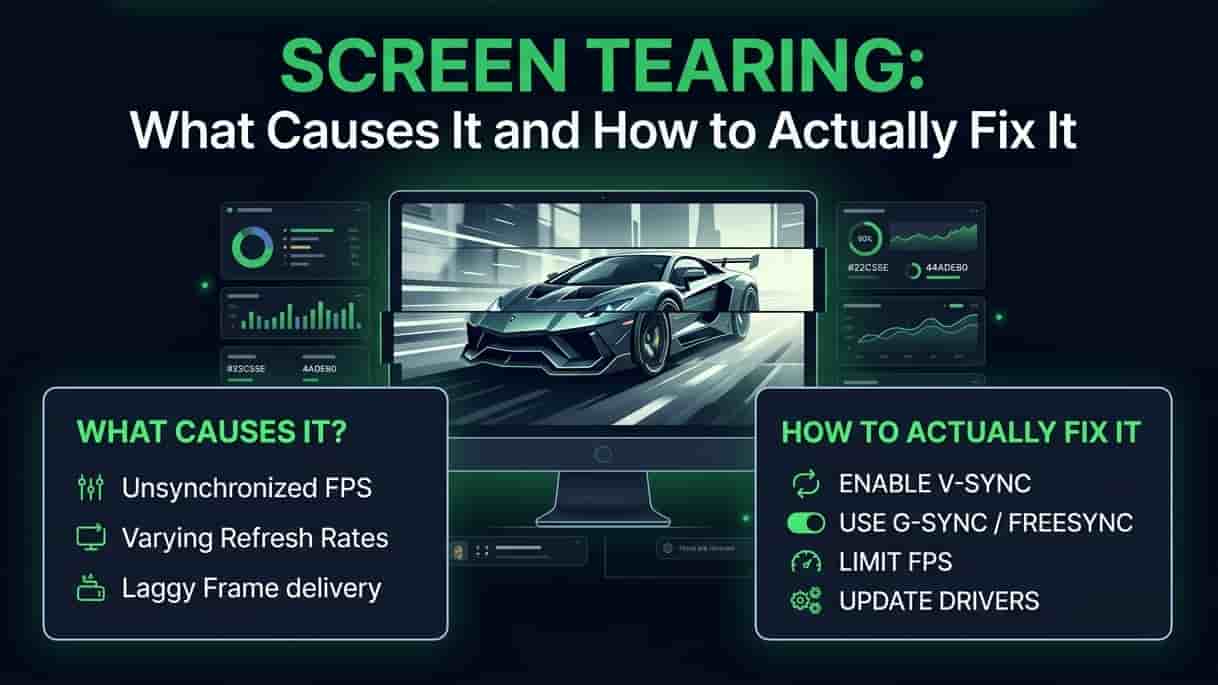
Screen tearing is a problem that can mess up your gaming or video time. You might see a line across the screen, where parts of two different images show up together. If you know why it happens and how to fix it, you can get smoother and better visuals.
Good news: it's fixable. Here's what's actually going on, and every real fix, from the five-second option to the one that actually solves it for good.
So What Is Screen Tearing, Really?
Think of a printing press that swaps the plate mid-page. Top half of the page comes from one run, bottom half from the next. Still technically "a page" just stitched together wrong.
Your monitor does something similar. It redraws the whole screen top to bottom on a fixed schedule (that's your refresh rate). Your graphics card finishes new frames whenever it finishes them, not on the monitor's schedule at all. When a new frame lands mid-redraw, the monitor just keeps going with what it's got. Result: half old frame, half new frame, split by a jagged line.
You'll notice it most during fast horizontal movement panning, strafing, car chases. That's when the mismatch is most obvious.
Why It Happens (Quick Version)
Two numbers people mix up all the time:
Frame rate (FPS) — how many images your GPU can pump out per second
Refresh rate (Hz) — how many times per second your monitor can actually redraw
They run on separate clocks. Tearing shows up when they drift out of sync with each other.
Not sure what either number actually is on your setup? Run our FPS Test and Refresh Rate Test a lot of "tearing" complaints turn out to be a monitor quietly stuck at 60Hz.
Tearing, or Something Else?
Easy to mix these up, so here's the quick rundown:
Tearing — horizontal split, image looks sheared. Worst during fast horizontal motion. A sync issue.
Stutter — the image freezes or hitches, doesn't split. A timing issue, not a sync issue.
Ghosting — a faint trail behind moving objects. That's your panel's response time, not something a setting fixes.
Input lag — delay between your action and seeing it happen. A different problem entirely.
If it's a horizontal split during fast motion, yep, that's tearing. Keep reading.
The Fixes, Easiest to Best
1. Flip on V-Sync The old-school fix. Holds each frame until the monitor's ready, so you never see a half-drawn one. Works but it costs you. Adds input lag, and if your FPS dips below your refresh rate you can get stutter instead. It's in basically every game's settings menu.
2. Turn on G-Sync or FreeSync This is the actual fix, not a band-aid. Instead of the GPU waiting on the monitor, the monitor adjusts itself to match whatever the GPU is sending, in real time. No mismatch, no tearing, and none of V-Sync's extra lag. NVIDIA calls theirs G-Sync, AMD calls theirs FreeSync. Check your monitor's on-screen menu and your GPU's control panel it needs to be switched on in both places.
One thing worth knowing: adaptive sync only works within a range, say 48-144Hz. Go above or below that and tearing can creep back in.
3. Cap your frame rate a few FPS under your refresh rate If your GPU's pushing 200 FPS on a 144Hz screen, those extra frames aren't doing anything for you and running right up against your max refresh rate is one of the most common ways adaptive sync stops working properly. Cap it a few frames under (say 141 on a 144Hz monitor) and you'll stay safely inside its range. Do this in-game, in the NVIDIA or AMD control panel, or with a tool like RivaTuner.
4. Try Fast Sync or Enhanced Sync for really high frame rates Pushing 300 FPS on a 144Hz screen? NVIDIA's Fast Sync and AMD's Enhanced Sync are built for exactly that. GPU keeps rendering full speed in the background, monitor just grabs the newest finished frame each cycle. Tear-free, without V-Sync's lag penalty. It won't help much if your FPS is below your refresh rate, though.
5. Double check your cable and port Less common, but worth ruling out. A weak cable or the wrong port can quietly cap your refresh rate or drop frames, and that can look a lot like tearing. Our Refresh Rate Test page has a full cable compatibility table if you want to check.

Honestly, for most people the winning setup is all three at once G-Sync or FreeSync on, frame rate capped a few FPS under your max, and V-Sync left on in the control panel as a backstop for the rare moment you go over. Sounds like a lot, but it's a five-minute setup you only do once.
Fullscreen, Windowed, Mac Does It Matter Where You Play?
Exclusive fullscreen — most common place you'll run into tearing, since the game talks straight to the display.
Borderless windowed — routed through your OS instead. Often works fine with adaptive sync on modern Windows, but it varies by game if you're seeing tearing here, try true fullscreen as a test.
Browsers and video — rare, but not impossible, usually from GPU driver quirks. Update your drivers first if it happens outside of games.
Mac — basically a non-issue. macOS keeps everything synced by default, so tearing is rare outside of fullscreen edge cases or running Windows games through Boot Camp.
FAQ
What actually causes screen tearing? Your GPU and monitor run on different clocks. When a new frame arrives mid-redraw, the screen shows pieces of two frames at once.
Does V-Sync fully fix it? Yeah, but you're trading it for input lag, and possibly stutter if your FPS drops. G-Sync or FreeSync gets you the same result with way less downside.
G-Sync or FreeSync, which is better? Functionally, same job. Which one you use comes down to your GPU brand and what your monitor supports. Most modern monitors support FreeSync, and plenty are "G-Sync Compatible" too.
Still tearing with G-Sync or FreeSync turned on? Probably your frame rate is running above your monitor's max refresh rate. Cap it a few FPS under and it should clear up.
Can tearing damage my monitor? Nope. Purely visual. Annoying, but harmless.
Why don't I see this on my phone? Phones, and Mac too, sync everything through the system by default, so the mismatch rarely gets a chance to happen. It's mostly a PC and Windows fullscreen thing.
Test Your Setup
FPS Test check your real frame rate
Refresh Rate Test confirm your monitor's actual Hz
Mouse Polling Rate Test worth a check if things feel laggy on top of the tearing