Screen Tearing vs Stutter vs Input Lag: Simple Guide
September 11, 2026
Something feels off while you're gaming. Maybe the screen looks weird when you turn fast. Maybe it freezes for a split second every now and then. Maybe you click, and it feels like your shot landed a beat too late.
Most people just call all of this "lag." One word for three different problems.
But screen tearing, stutter, and input lag are not the same thing. Each one has its own cause. Each one needs its own fix. If you fix the wrong one, nothing gets better, and you just stay annoyed.
Let's make this simple.
Screen tearing: the picture looks split in half
This one's easy to spot once you know what to look for.
You'll see a line, sometimes more than one, cutting across the screen. The part above the line and the part below it look like two different moments in time. It's most obvious when you turn fast in a game.
Why it happens
Your GPU and your monitor aren't in sync.
Your GPU finishes a new picture and sends it over
Your monitor is still halfway through showing the old picture
The monitor switches mid-way, so you see part of the old picture and part of the new one at once
That's the tear.
When you'll see it
Your FPS is higher than your monitor's refresh rate
You're turning the camera fast
V-Sync is turned off
How to fix it
Turn on V-Sync. This makes your GPU wait for the monitor. It fixes tearing, but it can add a small delay (more on that below).
Use G-Sync or FreeSync, if your monitor has it. This lets the monitor match your GPU instead of the other way around. Usually the better fix.
Cap your FPS a little below your monitor's refresh rate. This helps a lot, and it skips most of the downsides of plain V-Sync.
Stutter: things freeze, then jump back to normal
This feels different from tearing. Nothing looks split. The picture just stops moving for a moment, then catches up.
If tearing is a visual glitch, stutter is a timing glitch. The picture looks fine when it's paused. It's the rhythm that's broken.
Why it happens
One frame takes way too long to get ready. So instead of a smooth flow, you get a pause, then a jump.
Common causes:
Your CPU can't keep up, usually during busy, chaotic moments in a game
Background apps using up CPU power your game needs
Shader loading, right after a game starts or after a driver update
Your GPU running out of memory (VRAM)
A slow hard drive, especially in big open-world games
When you'll notice it
Big fights, busy scenes, lots happening at once
Right after loading into a new area
The first time a new visual effect shows up
How to fix it
Close background apps you don't need, especially recording software
Update your graphics drivers
Lower CPU-heavy settings, like draw distance, if the game lets you
Let shader loading finish at the start of the game instead of skipping it
Move your games to an SSD, if you're still using an older hard drive
Input lag: your actions feel delayed
This one is sneaky. There's nothing to look at. No split screen, no freezing. It just feels like a small gap between doing something and seeing it happen.
Why it happens
Input lag is the time between your action, like a click, and that action showing up on screen. A few steps add up to this delay:
Your mouse or keyboard sends the signal
Your PC processes it
Your GPU draws the new picture
Your monitor shows it
Each step is small. But add them together, and you can feel a real delay.
The V-Sync surprise
Here's something people don't expect. Turning on V-Sync to fix tearing can make input lag worse. It makes your GPU wait, and that wait adds a small delay. You fix one problem and slightly create another.
When you'll notice it
Fast games where timing matters, like shooters
After turning V-Sync on, especially at lower FPS
Using a wireless mouse or an old, slow mouse
How to fix it
Turn V-Sync off, or use G-Sync/FreeSync instead
Check your mouse's polling rate. A low or mismatched one can add delay.
Use a wired mouse and keyboard if you can. Wireless always adds a small delay.
Cap your FPS a bit below your monitor's max. This can actually lower input lag too.
A simple way to tell them apart
Ask yourself these, in order:
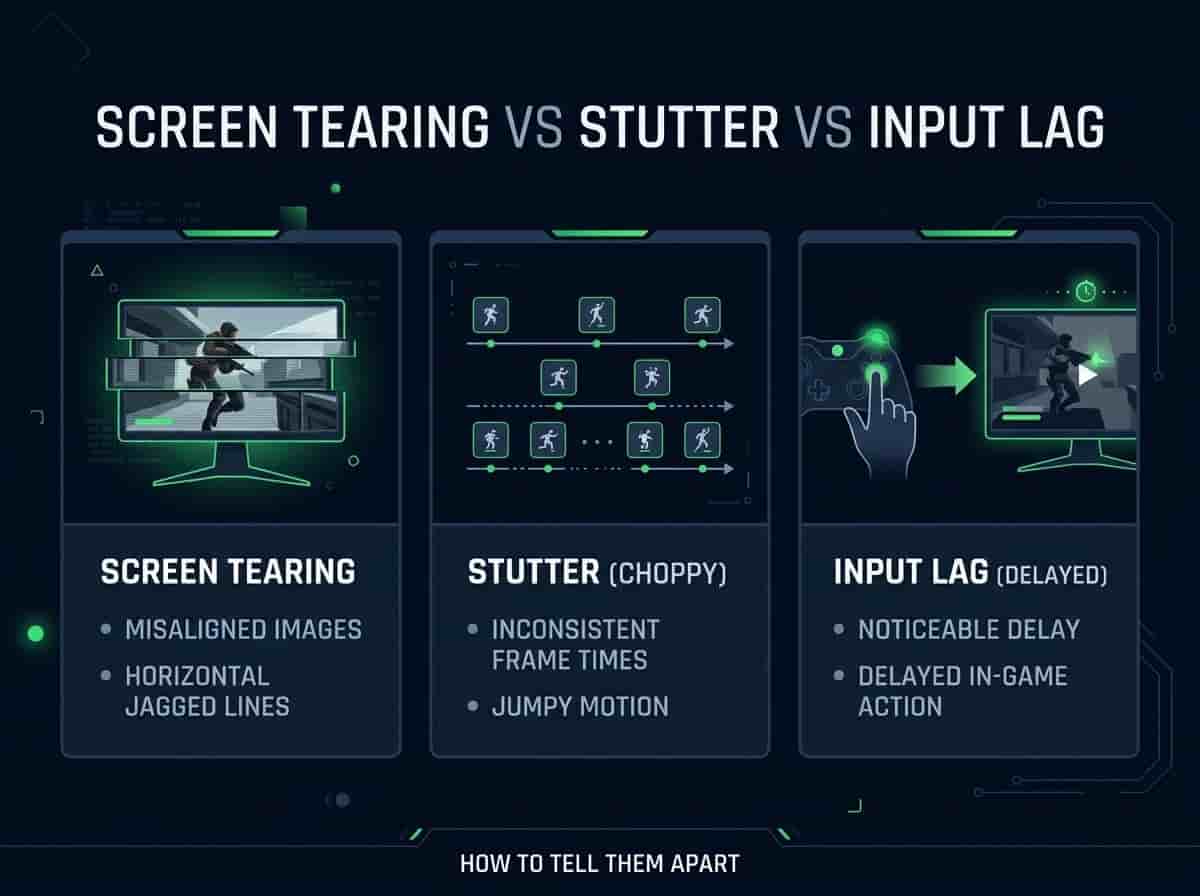
Does the picture look physically split? That's tearing.
Does everything freeze, then jump forward? That's stutter.
Does the picture look fine, but your clicks feel late? That's input lag.
Sometimes you get more than one at once. A weak CPU can cause stutter and a bit of input lag at the same time. That's exactly why people mix them up and just call it all "lag."
How to test your own setup
You don't need special tools. Just try this:
Run our FPS Test and Screen Tearing Test to check your real FPS and see if tearing shows up
Watch for the split line during fast movement. It's easier to spot in motion than in a still image.
Notice if freezes happen randomly, or always in the same spot. Same spot every time usually means shader loading or asset loading, not a hardware limit.
Turn V-Sync on and off. See if tearing goes away, and if things feel slightly more delayed with it on.
Quick summary table

Frequently asked questions
Can I have all three at once? Yes, this happens a lot on an older or overloaded PC. They often share the same root cause, so fixing one can help the others too.
Does a higher refresh rate monitor fix everything? It helps with tearing, since there's less room for mismatch. But it won't fix stutter from a weak CPU, or input lag from a bad mouse.
Is G-Sync or FreeSync better than plain V-Sync? Usually yes, if your monitor supports it. It fixes tearing without adding as much delay as regular V-Sync.
Why does input lag feel worse in some games than others? Some games are built with more steps between your click and the screen. Some are just better optimized than others, no matter your hardware.
Should I always turn V-Sync off for less delay? Not always. If tearing bothers you more than a small delay, keep it on, or better, use G-Sync or FreeSync instead. It depends what annoys you more.
The simple version
Screen tearing = the picture looks split. Fix with V-Sync, G-Sync, or FreeSync.
Stutter = things freeze, then jump. Fix by closing background apps and lowering CPU-heavy settings.
Input lag = your clicks feel late, but the picture looks normal. Fix by managing V-Sync and checking your mouse.
Once you know which one you actually have, you stop guessing and start fixing the real problem.