Stuck vs. Dead Pixels: The Complete Guide to Diagnosing Display Defects
June 29, 2026
1. Introduction
You're staring at your screen. Everything looks fine. Then you see it. A tiny dot. Just sitting there. Not moving. Not going away.
Honestly, it's the worst feeling.
Maybe it's a bright red speck in the middle of your monitor. Or a black spot that won't disappear. Whatever it is it's annoying.
Here's the thing:
That little dot is either a stuck pixel or a dead pixel. They sound similar. They look similar. But they're actually different problems. And here's the good news, one of them you can probably fix. The other? Not so much.
I've dealt with both. I know how frustrating it is. So I put this guide together to save you the headache.
2. Stuck vs. Dead Pixels
Before we jump into fixes, you need to know what you're dealing with. Because the fix depends entirely on the problem.
What Is a Dead Pixel?
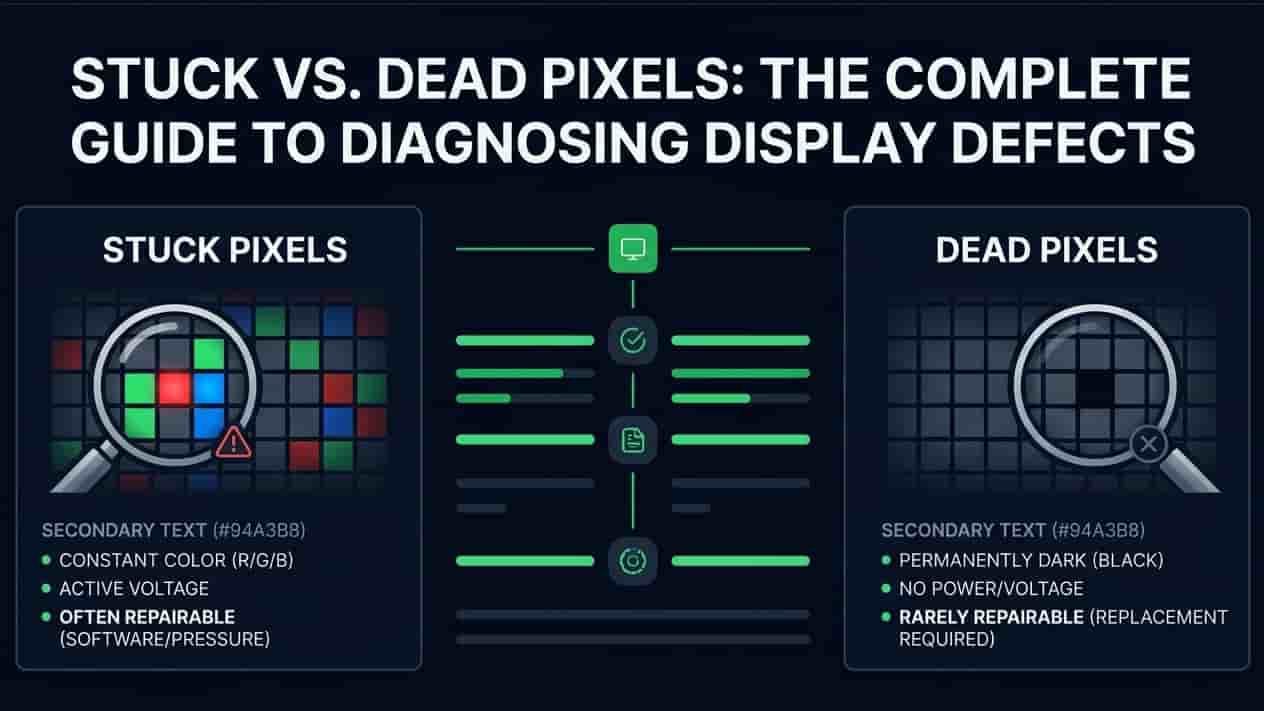
A dead pixel is exactly what it sounds like it's dead. Permanently dead.
Here's what happens:
Each pixel has three subpixels: red, green, and blue. When one or more subpixels die, that pixel stays black. Always.
What a dead pixel looks like:
A tiny black dot
Stays black no matter what's on screen
Never changes color
Looks like dust but won't wipe off
Can you fix a dead pixel?
Honestly? Almost never. Once it's dead, it's dead. Success rate is below 5%.
What causes dead pixels?
Physical damage
Manufacturing defects
Age and wear
What Is a Stuck Pixel?
A stuck pixel is different. It's not dead. It's just... stuck.
Here's what happens:
Instead of being completely off, one or more subpixels are stuck on one color. So you get a bright dot.
What a stuck pixel looks like:
A colored dot (red, green, blue, or white)
Stays the same color all the time
More noticeable on dark backgrounds
Can you fix a stuck pixel?
Yes! This is the good news. Stuck pixels are fixable about 50-80% of the time. Most methods are free and easy.
What causes stuck pixels?
Electrical glitches
Power fluctuations
Software issues
Quick Comparison Table
Stuck Pixel
Dead Pixel
Looks Like
Colored dot
Black dot
Fixable?
Often yes (50-80%)
Almost never (<5%)
Cause
Electrical glitch
Physical damage
How to Tell Them Apart
Step 1: Display a black screen. If the dot is colored - it's stuck. If it's black-it's dead.
Step 2: Display a white screen. If the dot is black-it's dead. If it's colored-it's stuck.
Bottom line: Colored dot = hope. Black dot = permanent.
3. Causes
So how do these annoying dots show up?
Manufacturing Defects
Sometimes it's just bad luck. Pixels can be defective right out of the factory.
What you can do:
Check the warranty
Return if it's new
Physical Damage
Common causes:
Dropping your device
Pressing too hard on the screen
Closing the lid with something inside
Overheating
Heat is bad for screens. Prolonged heat can damage pixels permanently.
How to avoid:
Keep devices cool
Don't leave them in hot cars
Use cooling pads for laptops
Age and Wear
Nothing lasts forever. Screens get old. Pixels degrade.
Electrical Issues
Sometimes it's just a glitch. A power surge. A software bug.
What you can do:
Restart your device
Update graphics drivers
4. How to Identify
Got a dot on your screen? Here's what to do.
Step 1: Clean Your Screen
Before you panic, make sure it's actually a pixel issue.
Wipe the screen with a microfiber cloth
Check if the dot moves or wipes off
If it wipes off congratulations. It was just dirt.
Step 2: Use Solid Color Backgrounds
This is the most reliable way to identify pixel issues.
What to do:
Display a black screen
Display a white screen
Display red, green, and blue screens
What to look for:
Colored dot on black = stuck pixel
Black dot on white = dead pixel
Dot appears on some colors but not others = stuck subpixel
Where to get solid colors:
Use an online pixel test tool
Open a blank document
Use YouTube videos with solid colors
Quick Identification Summary
What You See
What It Is
Can You Fix It?
Colored dot on black
Stuck pixel
Often yes
Black dot on white
Dead pixel
Almost never
5. How to Fix
Good news if you have a stuck pixel, you've got options.
Method 1: Software Fix (Safest)
Start here. It's free. It's easy. It won't damage your screen.
How it works:
Software rapidly cycles colors on the stuck pixel area. This forces the pixel to "unstick."
Best free tools:
JScreenFix (web-based)
PixelHealer (Windows)
UDPixel (Windows)
How to use:
Open the tool
Set it to flash colors on the stuck area
Let it run for 15-30 minutes
Check if the pixel is fixed
If not, run it longer (some need 4+ hours)
Success rate: 50-60% | Risk: None
Method 2: Heat Method (Moderate Risk)
Try this if software fails.
What you'll need:
A soft microfiber cloth
Warm water
Step-by-step:
Run warm (not hot) water over the cloth
Squeeze out excess water
Place the warm cloth on the stuck pixel
Let it sit for 5-10 minutes
Check if it's fixed
Success rate: 30-40% | Risk: Moderate
Method 3: Pressure Method (Higher Risk)
Use with caution. This can damage your screen.
Step-by-step:
Turn off the screen
Wrap a blunt object in a cloth
Place it on the stuck pixel
Apply gentle pressure (don't push hard!)
Turn the screen back on
Check if it's fixed
Warning signs to stop:
Screen cracks
More pixels become stuck
Any physical damage
Success rate: 20-30% | Risk: High
Method 4: Tap Method (Low Risk)
Sometimes a gentle tap is all you need.
How to do it:
Turn off the screen
Use a soft cloth
Gently tap around the stuck pixel
Turn the screen back on
Check the pixel
Success rate: 10-20% | Risk: Low
What to Try First
Software fix (safest)
Heat method (moderate risk)
Tap method (low risk)
Pressure method (only if nothing else works)
Honestly? Most stuck pixels fix with software. Try that first. Be patient.
Can You Fix a Dead Pixel?
Short answer: No. Almost never.
Long answer: Success rate is below 5%. If a pixel is truly dead, it's permanently damaged. No software, heat, or pressure will bring it back.
What to do instead:
Accept it
Check your warranty
Replace the screen if it bothers you
6. Prevention
An ounce of prevention is worth a pound of cure.
Handle Screens Carefully
Do:
Use both hands when lifting
Close lids gently
Keep screens clean
Don't:
Press hard on the screen
Touch with sharp objects
Keep Devices Cool
Do:
Use laptops on hard surfaces
Keep devices ventilated
Don't:
Leave devices in hot cars
Block ventilation vents
Use Quality Accessories
Do:
Use good cables
Use surge protectors
Don't:
Use cheap, damaged cables
Test New Screens Immediately
Do:
Run a pixel test right away
Return within the return window
Don't:
Wait to test
Ignore the return window
7. FAQ
Can a stuck pixel become a dead pixel?
Yes. If left unfixed, it can become permanent. Fix it as soon as you notice it.
Do dead pixels get worse?
Sometimes. Dead pixels usually stay dead. But nearby pixels can also die.
How long does pixel-fixing software take?
Some fix in 15 minutes. Others take 4+ hours. Be patient.
Does insurance cover dead pixels?
Usually not. Most policies have a minimum number before they'll cover it.
Are dead pixels common on new devices?
Yes. Manufacturing defects happen. Most allow 3-5 dead pixels before replacement.
Should I replace my screen for one dead pixel?
Probably not. Unless it's in the center and driving you crazy, it's not worth it.
Can I fix a stuck pixel on my phone?
Yes! All methods work on phones too. Just be extra gentle.
8. Conclusion
Let's wrap this up.
Key Takeaways
Stuck Pixel:
Colored dot
Usually fixable (50-80%)
Try software fix first
Dead Pixel:
Black dot
Almost never fixable (<5%)
Accept it or replace the screen
The Bottom Line
Stuck pixels are annoying but fixable. Dead pixels are permanent.
If you have a stuck pixel: Don't panic. Try the methods I shared. Most of the time, something works.
If you have a dead pixel: Don't stress. It's not going anywhere. Check your warranty or think about replacing the screen if it bothers you.
Either way: Take care of your screens. Be gentle. Keep them cool. And if you see something wrong, test it immediately.