What Is FPS in Gaming? A Complete Beginner's Guide
July 25, 2026
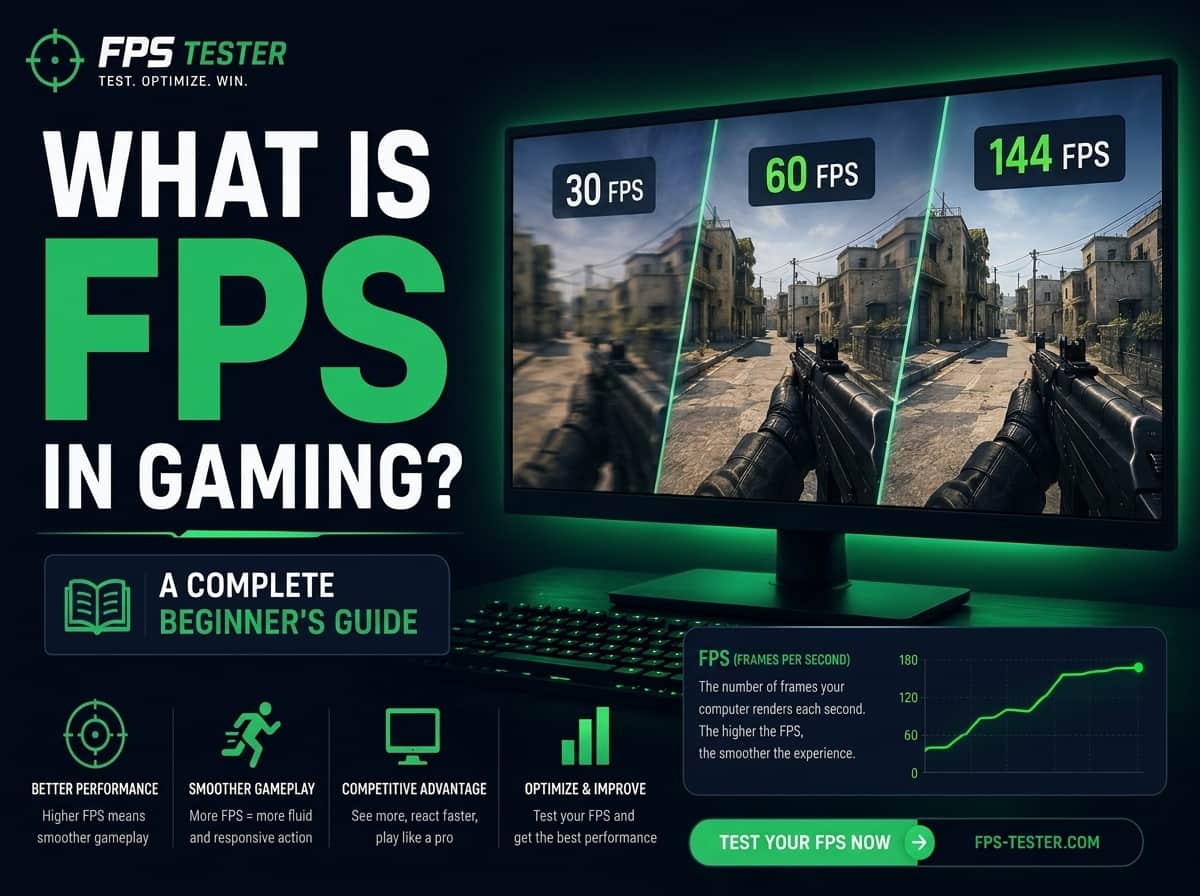
If you've ever watched gaming videos or checked PC specifications, you've probably seen the term FPS. It is one of the most important factors that affects how smooth and responsive your gameplay is.
What FPS Means in Gaming
FPS (Frames Per Second) stands for how many images your device displays each second. So, for instance, 60 FPS means the game displays 60 frames per second. Higher FPS leads to smoother gameplay and movement that appears more natural.
Why Gamers Care About FPS
Gamers care about FPS because it definitely affects the gaming experience. The performance is expressed through the FPS, higher FPS means smoother and more responsive games while lower FPS will result in lags, stutters and less precision control.
Quick Overview of How FPS Affects Gameplay
Frames per second (FPS) affects how smoothly a game runs and how quickly it responds to your actions. Higher and more stable FPS is a key factor in visual quality, responsiveness, and enjoyment (especially for competitive games).
What Does FPS Stand For?
FPS means Frames Per Second. It shows how many separate images are being displayed in seconds while you are playing a game or using an application, often known as frames. The higher the number of frames shown every second is, the smoother will the game feel.
Simple Example
Think of FPS like a flipbook. Each page has a slightly different image, and when each of the pages is flipped rapidly, they create motion. Games work in a similar way. If your device shows 60 images each second at 60 FPS, then movement appears smooth and natural.
Why FPS is Important?
Smoother Gameplay
A higher FPS makes movement and animations look smoother. Character, vehicular as well as camera movements all seem to play out more naturally, overall providing you a better gaming experience.
Better Responsiveness
FPS is also related to how fast a game reacts after you press your inputs. Higher frame rates can make controls feel more responsive, aiding faster on-screen action.
Competitive Advantage
For competitive games, a greater and more stable FPS can assist follow opponents and respond to fast-paced scenarios. Which will help with accuracy too, and give players a better opportunity to perform well while playing.
FPS Levels Explained
30 FPS
30 FPS is basically the bare minimum you need for a game to run smoothly. A lot of standard console games run at this speed. You can definitely still play and enjoy them, but the on-screen movement just won't look quite as smooth as it would on higher frame rates.
60 FPS
At 60 frames, the on-screen movement starts looking super natural, and whatever you're doing on your controller or keyboard just feels way snappier and more responsive. It makes a popular choice for both casual players and the competitive gamers.
120 FPS
At 120 FPS, everything looks even smoother and reacts faster. If you play fast-paced games like shooters or racing, you'll really notice how much better it feels to play.
144+ FPS
Pushing 144 frames or higher gives you a wildly smooth experience, assuming you actually have a high-refresh-rate monitor plugged in to handle it. Really competitive gamers tend to swear by these higher speeds. It cuts down on motion blur so everything stays crystal clear, which legitimately helps out your reaction time when a match gets chaotic.
Understanding FPS vs. Refresh Rate
Key Differences
Even though People mix up FPS and refresh rate a lot, but they're definitely different things.
· FPS (Frames Per Second) is how many frames your computer or console is actually creating each second.
· Refresh rate (measured in Hz) is just how fast your monitor can update the picture on the screen.
Basically, your gaming hardware handles the FPS, and your monitor handles the refresh rate.
How They Work Together
These two have to work together to make your game look smooth. If your PC is pushing out a ton of frames and your monitor is fast enough to actually keep up, the game is going to feel incredibly responsive.
Say your game is running at 120 FPS and you have a 120Hz monitor. That means you actually get to see all 120 frames every second. It’s going to look way better than playing at 60 FPS on a standard 60Hz screen. Because of this, gamers usually try to match their FPS to whatever their monitor's refresh rate is to get the best experience.
For the best results, many gamers try to match their FPS with their monitor's refresh rate.
How to Increase FPS
If your game is lagging, here are some ways to increase FPS and make gameplay smoother.
Lower Graphics Settings
Reducing settings such as shadows, textures, and visual effects can significantly increase FPS without much impact on gameplay.
Update Graphics Drivers
Graphics card manufacturers regularly release driver updates that improve performance and fix issues in new games.
Close Background Applications
Programs running in the background use system resources. Closing unnecessary apps can free up CPU and RAM, helping your games run more smoothly.
Reduce Resolution
Lowering your screen resolution decreases the amount of work your GPU has to do, which can increase FPS.
Upgrade Hardware
If you still have low FPS, upgrading parts like your GPU , CPU or RAM can greatly increase your FPS , especially if you play demanding games .
FAQ
What is FPS in gaming?
FPS stands for Frames Per Second. It measures how many images your game displays each second. Higher FPS generally results in smoother and more responsive gameplay.
Is 60 FPS good?
Yes, 60 FPS is considered the standard for smooth gaming. It provides fluid movement and responsive controls, making it a great experience for most players.
Is 120 FPS better than 60 FPS?
Yes, 120 FPS offers smoother motion and faster responsiveness than 60 FPS. The difference is especially noticeable in fast-paced and competitive games, provided you have a monitor that supports higher refresh rates.
How can I increase FPS?
You can increase FPS by lowering graphics settings, updating graphics drivers, closing unnecessary background programs, reducing resolution, or upgrading your hardware.