Why Turning Off Anti-Aliasing Doesn't Always Boost FPS the Way You'd Expect
September 16, 2026
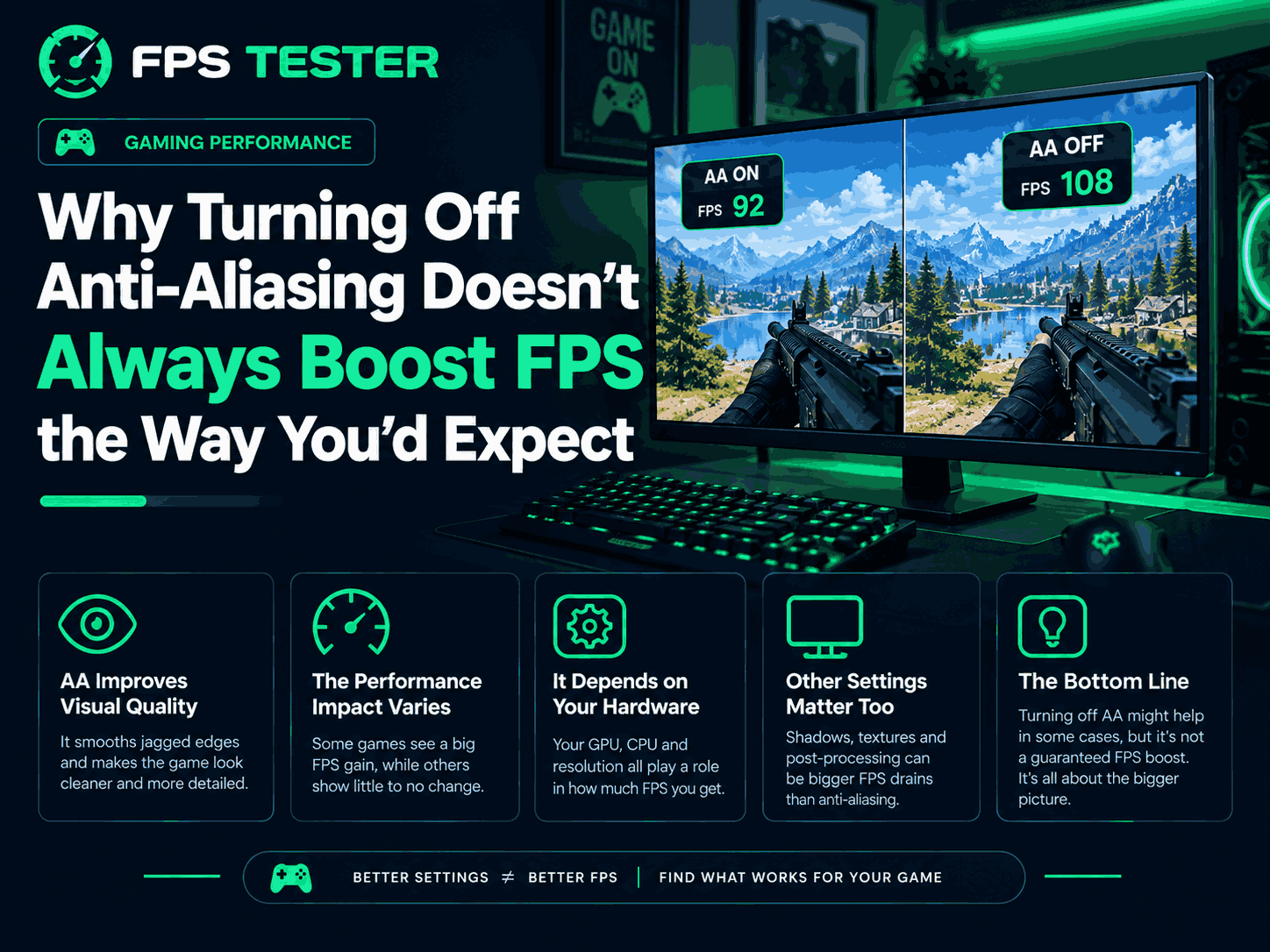
You know the feeling.
You're playing a game. The FPS is not great. You open settings. You see anti-aliasing. You think, "Easy win. Turn that off. Free frames."
So you turn it off. You go back. And… nothing.
Maybe you get 2 FPS. Maybe you get 0. Maybe the game even feels a little worse. And now you're sitting there confused, because everyone says AA is heavy.
Well, here's the truth. Anti-aliasing is not always the FPS killer people think it is. Sometimes turning it off helps a lot. Sometimes it helps a little. And sometimes it does almost nothing at all.
Let's break it down in plain English.
First, Anti-Aliasing Is Not Just One Thing
This is the biggest reason people get confused.
We say "anti-aliasing" like it's one setting. It's not. It's a whole group of methods. And each method costs a very different amount of performance.
Here are the main types you'll see:
SSAA – Super Sample Anti-Aliasing
This is the brute force method. The game renders at a much higher resolution, then shrinks the image down. It looks great. It also destroys your FPS.MSAA – Multi-Sample Anti-Aliasing
This is smarter than SSAA. It only takes extra samples around the edges of 3D objects. It's cheaper than SSAA, but still heavy in many modern games.FXAA – Fast Approximate Anti-Aliasing
This is a post-processing effect. It runs on the final image and smooths out edges. It's very cheap. It can make the image look a bit soft, but it barely touches your FPS.TAA – Temporal Anti-Aliasing
This uses info from past frames. It jitters the camera a tiny bit each frame and blends the results. It's good at removing shimmer and jaggies in motion. It's much cheaper than MSAA at high resolutions.DLSS, FSR, XeSS, and DLAA
These are upscalers and image reconstruction tools. They also handle anti-aliasing as part of their job. DLAA is the native-resolution version of DLSS. It's basically an anti-aliasing method by itself.
So right away, you can see the problem.
If you turn off FXAA, you're removing a very cheap effect. You won't get a big boost. If you turn off SSAA, you will get a big boost. But most modern games don't use SSAA.
That's why the old advice doesn't always work anymore.
The Old Advice Came From a Different Time
Years ago, anti-aliasing really was a performance monster.
SSAA could cut your FPS in half.
MSAA could cost 30% or more.
8x MSAA was a luxury setting.
Turning AA off was often the first thing you did to gain FPS.
But things changed.
Game engines changed. Rendering methods changed. Consoles changed. And modern AA methods like TAA and FXAA became the normal choice.
Now, in many games, TAA costs very little. FXAA costs even less. So turning them off gives you a small gain, not a huge one.
It's like removing a backpack from a car to make it faster. Sure, less weight helps. But the car is still limited by the engine.
Reason 1: Your CPU Might Be the Bottleneck
This is a big one.
A bottleneck just means the part that's holding everything back. If your CPU is the bottleneck, your GPU is not the problem.
Here's what that looks like:
Your GPU usage is sitting at 60% or 70%.
Your CPU usage is maxed out on one or more cores.
Your FPS is low, but your graphics card isn't even working that hard.
In this case, anti-aliasing is not your enemy.
Anti-aliasing is GPU work. It puts extra load on your graphics card. But if your graphics card is already waiting for the CPU to send it work, giving it less work won't make the game faster.
So you turn off AA. And nothing happens.
The CPU is still taking the same amount of time to process each frame. The GPU just sits there with less to do. Your FPS stays the same.
That's why some people say, "If you're CPU-bound, you can turn AA up for free." It's not exactly free, but it often doesn't cost much because the GPU wasn't the limiter.
Reason 2: Resolution Changes the Math
The resolution you play at changes how much anti-aliasing matters.
Here's the simple version:
At 1080p, jaggies are easier to see. AA matters more. Turning it off can help performance a bit more.
At 1440p, the image is sharper. AA still helps, but the cost and benefit change.
At 4K, pixels are so small that edges look smoother already. You might not even need heavy AA.
But there's another twist.
Lowering your resolution to gain FPS can shift more work onto the CPU. That sounds weird, but it's true. When the GPU finishes frames faster, the CPU has to keep up. If the CPU can't, it becomes the new bottleneck.
So here's a common trap:
You lower resolution.
You turn off AA.
You expect a huge boost.
Your CPU becomes the limiter.
Your FPS gain is smaller than you hoped.
Resolution and AA are connected. You can't always judge one without the other.
Reason 3: The Game Engine Matters
Not all games handle AA the same way.
Some games use forward rendering. In simple terms, this is an older way of building the image. MSAA works okay here.
Some games use deferred rendering. This is a newer way. It builds the image in stages. MSAA becomes very expensive here because the engine has to store a lot more data. That's why many modern games don't even offer MSAA anymore.
Then you have the graphics API.
DirectX 11
DirectX 12
Vulkan
Each one can change how AA performs. Sometimes a game has special optimizations tied to certain AA modes.
For example, in Doom Eternal, using TSSAA or no anti-aliasing enables asynchronous compute. That can improve performance. Using other AA methods disables it. So turning off AA might help a little, but switching to a different AA mode might help more.
The point is simple:
The engine decides how heavy AA is.
The API decides how well it runs.
The game's code decides the final result.
You can't just assume "AA off = more FPS" in every game.
Reason 4: The AA Implementation Itself Varies
Two games can both use TAA. That doesn't mean TAA costs the same in both games.
One game's TAA might cost 1 to 2 milliseconds of GPU time. Another game's TAA might cost 5 milliseconds or more. That's a big difference.
There was a test in the Godot engine where TAA took more than 1.2 milliseconds of GPU time even in an empty scene. That's a lot for an effect that's supposed to be cheap. Another engine's TAA had a frame time difference of only about 0.2 milliseconds.
Same idea. Different result.
So when someone says "TAA is cheap," they're only half right. It depends on how the developer built it.
Reason 5: Upscalers Already Do Anti-Aliasing
This is a huge reason the old advice feels outdated.
Modern games often use DLSS, FSR, or XeSS. These are upscalers. They render the game at a lower internal resolution, then rebuild the image at your monitor's resolution.
But here's the part people miss:
DLSS, FSR, and XeSS also smooth out edges.
They handle anti-aliasing as part of the upscaling process.
DLAA is basically DLSS at native resolution, used just for anti-aliasing.
So if you're using DLSS and you turn off AA in the game settings, you might not be turning off anti-aliasing at all. The upscaler is still doing it.
And in many cases, using DLSS or FSR gives you a much bigger FPS boost than turning off AA. It's not even close.
So the better question is not "Should I turn off AA?" The better question is "Should I turn on DLSS or FSR?"
Reason 6: The Gain Might Just Be Small
Let's be real. Even when turning off AA does help, the gain is often small.
Here are some real-world examples:
In one test, turning off AA gave about a 5% improvement.
In another test, using SMAA instead of TAA gave about a 2.5% boost.
In Assassin's Creed Origins, low anti-aliasing gave only about 4 more frames on average compared to higher settings.
At 4K, the gain was bigger, but still not massive.
A 5% gain at 60 FPS is 3 frames. That's not nothing. But it's not the magic fix people expect.
If you're at 45 FPS and you want 60, a 5% gain won't get you there. You need to change other settings too.
When Turning Off AA Actually Helps
Okay, so when does it help? Here are the times it makes sense.
You are GPU-bound.
Your GPU is at 99% usage. Your CPU is not maxed out. In this case, AA is adding GPU work, so turning it off can help.You are using a heavy AA method.
SSAA and MSAA are heavy. Turning them off can give a real boost.You are playing at 1080p or lower.
At lower resolutions, AA has a bigger impact on both looks and performance.You are not using an upscaler.
If DLSS, FSR, or XeSS is off, then the game's AA setting is the only AA you have.You are playing an older game.
Older games often use MSAA or SSAA. Those are much heavier than modern TAA.
If all five of those are true, then yes, turning off AA can help.
When Turning Off AA Does Almost Nothing
Now here's the other side.
You are CPU-bound.
Your GPU is not at full usage. Turning off AA won't fix a CPU problem.You are using DLSS, FSR, or XeSS.
The upscaler is already handling AA. Turning off the game's AA setting may do very little.You are playing at 4K.
The pixels are tiny. Edges look smoother already. AA matters less.You are using FXAA.
FXAA is very cheap. Turning it off gives a tiny gain.You are playing a modern deferred-rendering game.
Many of these games use TAA because MSAA is too expensive. TAA is often cheap enough that turning it off won't change much.
If any of those sound like your setup, don't expect a miracle.
What You Should Do Instead
Instead of blindly turning off AA, try this:
Check your GPU and CPU usage.
If GPU is at 99%, you're GPU-bound. If CPU is maxed, you're CPU-bound. This tells you where to focus.Try DLSS, FSR, or XeSS first.
These often give a bigger boost than turning off AA. And they can look pretty good.Try different AA modes.
If the game has TAA and FXAA, test both. FXAA is usually cheaper. TAA usually looks better in motion.Lower other settings first.
Shadows, reflections, volumetric fog, and view distance are often much heavier than AA. Start there.Don't assume AA is the problem.
Sometimes the real issue is a weak CPU, slow RAM, or a game that just runs badly.Test one setting at a time.
Change AA. Check FPS. Change shadows. Check FPS. That way you know what actually helped.
A Simple Way to Test It Yourself
Here's a quick test you can do in any game.
Stand in a busy area with lots of detail.
Turn off the FPS counter if you have one, then turn it back on.
Note your average FPS.
Turn AA off.
Note your average FPS again.
Check your GPU usage.
If GPU usage dropped but FPS stayed the same, you're CPU-bound.
If GPU usage stayed high and FPS went up, AA was helping hold you back.
That's it. No guesswork.
Frequently asked questions
Is TAA always better than turning anti-aliasing off completely? Not always, it depends on the specific game and how heavily it leans on TAA for other effects. Games with a lot of foliage or transparent detail usually look noticeably worse without it. Simpler, more contained games might handle it off just fine.
Does DLSS or FSR replace the need for anti-aliasing? Yes, essentially. These upscaling methods include their own anti-aliasing as part of how they work, so you should turn off separate AA settings when using them, rather than stacking both.
Why does TAA make my game look blurry? This is a common and fair complaint. Because TAA blends multiple frames together, fast motion can smear fine detail slightly. Turning on sharpening, either in-game or through your GPU software, usually fixes most of this without losing TAA's benefits.
Is old-school MSAA still worth using if a game offers it? Rarely in modern games. It's expensive, often 20 to 40 percent FPS, and doesn't always play well with how newer games render lighting and shading. It can still look great in older or simpler games, though.
The Bottom Line
Anti-aliasing is not the performance monster it used to be.
Modern AA like TAA and FXAA is often cheap.
Upscalers like DLSS and FSR already handle AA.
CPU bottlenecks can make AA changes do nothing.
Resolution changes how much AA matters.
Game engines and developers change the cost.
The FPS gain is often small.
So next time you're tweaking settings, don't just turn off AA and hope for the best.
Check your CPU and GPU usage. Try an upscaler. Test different AA modes. And remember that the biggest FPS gains usually come from fixing the real bottleneck, not from removing a setting that might not be the problem in the first place.
Turning off AA can help. But it's not a magic button. And now you know why.