Why Your FPS Test Result Looks Different on Chrome vs Firefox vs Edge
September 18, 2026
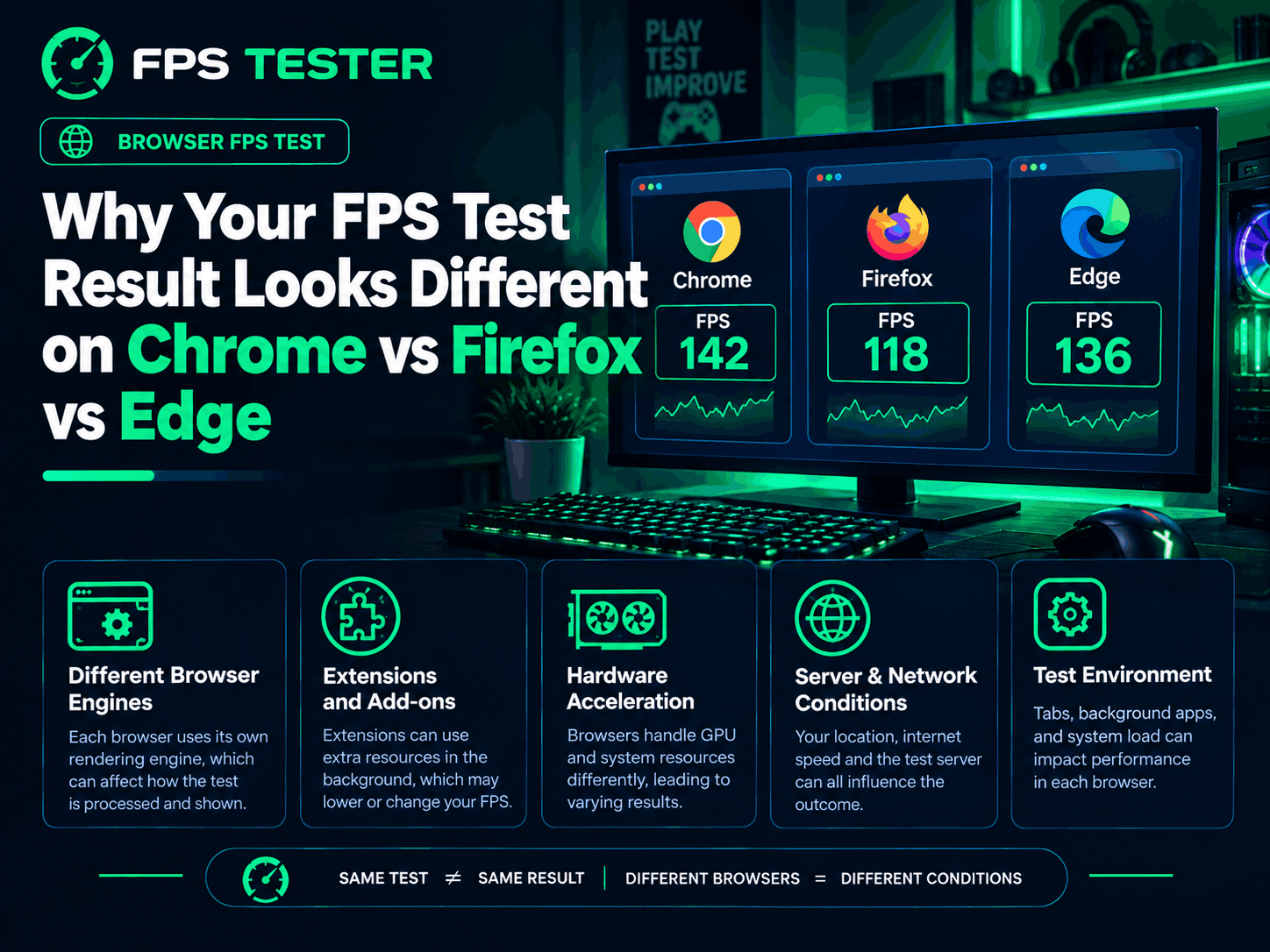
Kind of a weird thing happens sometimes. You run an FPS test in Chrome, get a solid number. Open the exact same test in Firefox, five minutes later, same PC, same monitor... and the number's different. Not wildly different, but enough to notice.
Did your PC suddenly get slower? Nope. Is the test broken? Also no. There's actually a real, sensible reason for this, and it comes down to something most people never think about: browsers aren't all built the same way under the hood, even when they look almost identical on the surface.
Let's get into why.
Chrome and Edge are basically twins, Firefox is the odd one out
Here's a detail that surprises a lot of people. Chrome and Microsoft Edge are both built on the same underlying engine, called Blink. So under the hood, they're rendering pages in a very similar way, using very similar code.
Firefox, on the other hand, runs on a completely different engine called Gecko, built by Mozilla from scratch, separately from Chrome's codebase.
This matters for FPS testing because it means Chrome and Edge should generally give you pretty close results to each other. Firefox is the one more likely to show a real, meaningful difference, simply because it's genuinely different software underneath, not just a different coat of paint.
What an FPS test in a browser is actually measuring
Quick bit of context before we go further. A browser-based FPS test isn't measuring your GPU directly, the way a real game does. It's measuring how often the browser fires something called requestAnimationFrame, which is basically the browser saying "okay, time to draw the next frame" over and over, as fast as your monitor and system allow.
So really, you're testing how efficiently each browser schedules and fires off that signal, combined with how well it's using your GPU to actually draw things. Different browsers handle both of those jobs a little differently, which is exactly where the number differences come from.
The real reasons your numbers don't match
1. Hardware acceleration settings
Every browser has a setting that lets it use your GPU for rendering, instead of relying only on your CPU. This is usually on by default, but not always, and it's controlled separately in each browser.
If one browser has this turned off, or it silently failed to enable for some reason, that browser will show dramatically lower FPS
Check it in Chrome or Edge under Settings, System, and look for "Use hardware acceleration when available"
Check it in Firefox under Settings, General, scroll down to Performance
2. Different scheduling behavior between engines
This is the technical heart of the issue. Blink (Chrome and Edge) and Gecko (Firefox) have their own separate logic for exactly when and how often they fire that animation frame signal.
They're both trying to hit the same target, usually matching your monitor's refresh rate, but the actual internal timing, especially under any kind of load, can differ slightly between engines. This is a big part of why Firefox numbers can drift from Chrome and Edge numbers even on the exact same PC.
3. Background tabs and extensions
Every open tab, and every active extension, is potentially using a slice of CPU or memory. And browsers don't all treat background tabs the same way.
Some browsers slow down or "throttle" inactive tabs more aggressively than others to save resources
A heavier extension setup, like several ad blockers or a lot of active tab-management tools, adds real overhead
If you have a different set of extensions installed on each browser, which is genuinely common, that alone can explain a chunk of the gap
4. Power-saving and efficiency modes
Some browsers include their own internal power-saving features, separate from your Windows power settings entirely.
Edge specifically has an "Efficiency Mode" feature that can throttle performance to save battery and resources
If this is enabled while you're testing, it can quietly cap what Edge is able to show you, even with hardware acceleration on
5. GPU driver quirks per browser
Occasionally, a browser will decide, on its own, that your specific graphics card or driver combination looks unreliable, and fall back to safer, software-only rendering instead of using the GPU properly. This happens more often than people realize, especially after a driver update.
Chrome has a hidden flag to override this safety fallback, found at chrome://flags, searching for "override software rendering list"
Firefox has similar settings inside about:config, related to WebGL and hardware acceleration
Things that affect every browser the same way
Not every FPS difference is about the browser itself. A few causes are actually system-level, and they'll affect whatever browser you're using equally.
Mixed refresh rate monitors. If you have a 144Hz monitor and a 60Hz monitor both connected, Windows sometimes renders everything at the lower shared rate, capping your FPS no matter which browser you're in
Battery vs plugged in. Laptops often throttle CPU and GPU performance on battery power, which shows up identically across every browser
Outdated GPU drivers. An old driver can cap performance system-wide, not just in one specific browser
If your FPS looks low everywhere, across every browser you try, this second category is usually the more likely explanation, rather than anything browser-specific.
How to actually test this properly
If you want a real, fair comparison between browsers, a sloppy test will just confuse you further. Here's how to do it right.
Close every other tab and app before testing, in each browser, one at a time
Make sure hardware acceleration is turned on in every browser you're comparing, checking each one's own settings menu individually
Turn off any power-saving or efficiency mode temporarily, especially in Edge
Run our FPS Test in each browser back to back, ideally within a few minutes of each other, so system conditions stay as similar as possible
Run each test two or three times, since small natural variation happens between runs even in the same browser
Note if you're plugged in or on battery, and keep that consistent across all your tests
A quick real-world example
Say you test all three browsers on the same laptop, same monitor, same everything else. Chrome shows 240 FPS. Edge shows 235 FPS, close enough to be basically the same thing. Firefox shows 205 FPS.
That gap between Chrome/Edge and Firefox lines up almost exactly with what you'd expect, given they're built on genuinely different engines under the hood. The small Chrome-vs-Edge gap is just normal run-to-run variation, nothing meaningful.
Now imagine all three browsers suddenly show around 60 FPS, when you'd normally expect 200 plus. That's a strong sign the issue isn't the browsers at all, it's something system-level, like a mixed-refresh-rate monitor setup or your laptop quietly running on battery-saving mode.
What about Safari, or mobile browsers?
Since this article focuses on the three most common desktop browsers, it's worth a quick mention of where others fit in, in case you're curious.
Safari runs on its own engine too, called WebKit, which is actually the ancestor Blink was originally forked from years ago, though the two have diverged quite a bit since then. On Mac hardware specifically, Safari is often very well optimized, sometimes outperforming Chrome in certain rendering tasks, since it's built and tuned specifically for Apple's own hardware.
Mobile browsers add a whole extra layer of complexity, since phones often cap frame rates deliberately to save battery, regardless of which browser you're using. If you're testing on mobile and comparing to desktop numbers, expect a bigger gap than browser differences alone would explain.
GPU rendering path differences matter too
Here's one more technical layer worth knowing about, since it explains some of the more extreme differences people occasionally report.
Browsers don't just decide whether to use your GPU or not, they also have different internal rendering pipelines for how they hand work off to it. Chrome and Edge use a compositor system that's been heavily optimized over many years specifically for smooth animation and scrolling. Firefox has its own separate compositor, called WebRender, which has improved a lot over time but still has some situations where it behaves differently, particularly on certain Linux configurations or with specific graphics drivers.
This is fairly deep, technical territory, and you don't need to understand the internals to use the information. The practical takeaway is just this: when a browser's compositor and your specific GPU driver don't get along perfectly, you can see a bigger-than-usual gap, even between two browsers that are normally quite close.
Frequently asked questions
Is it normal for Chrome and Edge to show slightly different numbers? Yes, a small gap is completely normal, even though they share the same underlying engine. Extensions, open tabs, and small background differences can account for a few FPS either way.
Does Firefox actually perform worse than Chrome, or is it just different? It's genuinely more "different" than strictly "worse." Some benchmarks show Chrome ahead in certain rendering tasks, but Firefox has its own strengths elsewhere. For a pure FPS test specifically, Chrome and Edge tend to report higher numbers more consistently, mostly due to how their shared engine schedules animation frames.
Should I trust my FPS test result from just one browser? For a general sense of your PC's capability, one browser is usually fine. If you're troubleshooting a specific problem, testing in two browsers can help you figure out whether the issue is browser-specific or a deeper system issue.
Does closing background tabs really make a measurable difference? Yes, especially tabs playing video, running animations, or using WebGL. Even seemingly idle tabs sometimes keep running background scripts that quietly eat into your CPU and GPU availability.
Why does my FPS test look fine in a full window but drop when I resize the browser smaller? This is normal and expected, actually. A smaller rendering area generally means less work per frame, which can sometimes show higher FPS, while other times a resize can briefly interrupt the browser's rendering pipeline and dip the number for a moment. It's not something to worry about long term.
The simple version
Chrome and Edge share the same underlying engine, so they usually report close FPS numbers to each other
Firefox uses a completely separate engine, so it's the browser most likely to show a real, noticeable difference
Hardware acceleration, background tabs, extensions, and power-saving modes can all cause gaps between browsers
If every browser shows a low number, the cause is probably system-level, not browser-specific, things like a mixed-refresh-rate monitor or battery-saving mode
Testing fairly, with the same conditions across each browser, gives you the clearest picture of what's actually going on
So no, your PC didn't get slower between opening Chrome and opening Firefox. You just switched to a different piece of software doing the same job in a slightly different way.