Why Your Monitor Shows 165Hz Instead of the Advertised 240Hz
September 10, 2026
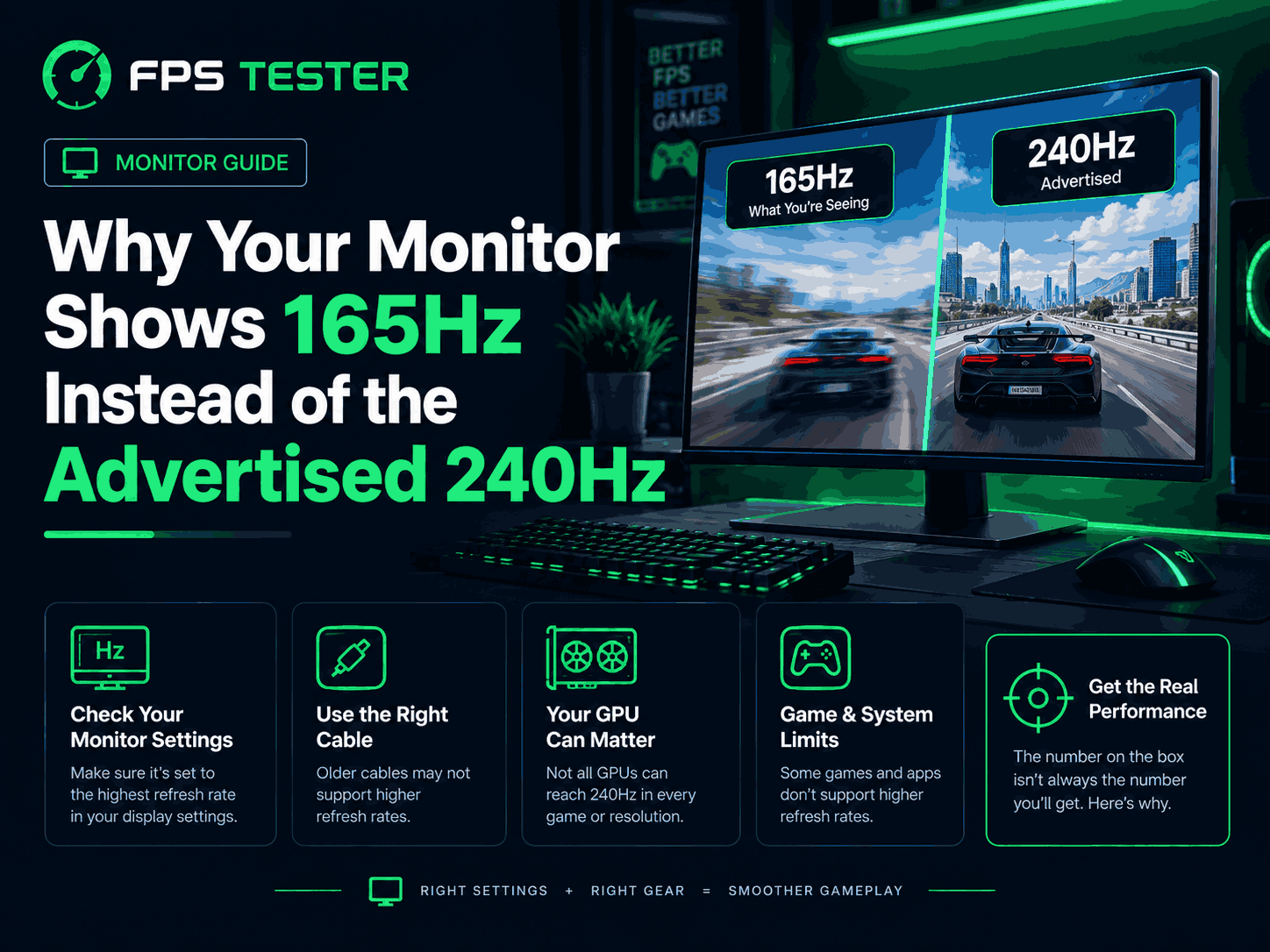
So you just bought a monitor. The box says "165Hz." Maybe it even says "overclockable to 165Hz" somewhere in small print, but let's be honest, who reads the small print before buying.
You get it home, plug it in, open your display settings... and it's sitting at 144Hz. Not 165. Definitely not 240 if that's the number you saw on the store listing.
Is the monitor broken? Did you get scammed? Nope, probably not. There's actually a pretty simple explanation for this, and once you know it, it's kind of annoying how rarely stores explain it clearly.
That "up to" wording is doing a lot of work
Here's the thing about phrases like "up to 240Hz" or "overclockable to 165Hz." That word "up to" is basically a warning label, if you know how to read it.
It means the number you're seeing isn't the guaranteed, out-of-the-box refresh rate. It's the maximum the panel can reach, under the right conditions, with a setting turned on that isn't enabled by default.
Compare that to a monitor that just says "165Hz" with no "up to" or "overclockable" language. That one usually gives you the full rate straight out of the box, no extra steps needed.
So really, this comes down to reading two very different kinds of product claims as if they were the same thing. They're not.
Why manufacturers ship it locked in the first place
Okay, but why would a company sell you a monitor and then not give you the speed it's capable of? Seems like a weird choice, right?
There's actually a reasonable reason behind it:
The panel itself might genuinely be capable of 240Hz, but not every single unit off the factory line hits that number with perfect stability
Running at the higher rate by default, on every unit, risks more customers seeing flickering, artifacts, or the occasional dropped frame
By shipping at a safer, guaranteed number (say, 144Hz) and offering the higher rate as an optional "overclock," the manufacturer protects the base experience while still letting enthusiasts chase the extra performance if they want it
Basically, it's a safety net. Not every panel is identical, even off the same production line, and shipping conservatively means fewer returns and fewer angry reviews from people who didn't want to mess with settings anyway.
Where to actually find the toggle
Good news, this is usually not complicated once you know where to look. The setting almost always lives in one of these two spots.
In the monitor's own on-screen menu (OSD):
Open your monitor's settings menu using the physical buttons or joystick on the monitor itself
Look for something labeled Overclock, OC Mode, or occasionally just a refresh rate option buried under a Gaming or Advanced section
Turn it on, then save and exit the menu
In your GPU's control panel:
Open NVIDIA Control Panel or AMD Software, depending on your graphics card
Find the display or resolution settings section
Look for a custom resolution or refresh rate list, and see if the higher number now shows up as an option
Some monitors need the OSD toggle first before the higher rate even appears as a choice in your GPU software. So if you only check one place and don't see it, try the other before assuming it's not supported at all.
The cable matters more than people expect
Here's a detail that trips up a lot of people, and honestly it's probably the most common reason the higher refresh rate simply won't show up as an option at all, toggle or no toggle.
Different cable types carry different amounts of data, and a high refresh rate at a given resolution needs a certain minimum bandwidth to work.
HDMI, especially older versions, often caps out around 144Hz at 1080p or 1440p, depending on the exact version
DisplayPort, particularly version 1.4 or newer, usually has enough bandwidth to handle 165Hz, 240Hz, and beyond, assuming the resolution isn't too demanding on top of it
So if you're plugged in over HDMI and wondering why your "165Hz" monitor won't go past 144, that's very possibly your actual answer, no overclock setting needed to fix it. Switching to DisplayPort alone often solves it instantly.
Does turning on the overclock actually damage anything?
This is probably the number one worry people have, and it's a fair one. Nobody wants to accidentally fry an expensive monitor over a settings toggle.
From what actual users and reviewers have reported over the years, the honest answer is: generally, no, not when you're using the manufacturer's own advertised overclock number.
If the box or product page specifically advertises "overclockable to 165Hz," that number has already been tested by the manufacturer as something the panel should handle safely
Manufacturers generally wouldn't advertise a specific overclock number if reaching it reliably damaged the product, since that would create exactly the kind of returns and complaints they're trying to avoid in the first place
The bigger risk isn't really damage, it's instability, meaning flickering, an "out of range" warning message, or dropped frames if you try to push past what your specific unit can actually handle
Going past the advertised overclock number, into unofficial, self-discovered territory using tools like CRU (Custom Resolution Utility), is a slightly different story. That's genuinely experimental, and results vary wildly between individual units, even of the exact same model.
A quick real-world example, since this happens a lot
Take a fairly common case that's shown up plenty of times in monitor forums and reviews over the years: someone buys a "165Hz" monitor, plugs it in, and finds it capped at 144Hz by default. They dig into the on-screen menu, find an overclock toggle, flip it on, and suddenly 165Hz appears as a selectable option in Windows.
Now flip the scenario slightly. Someone else buys a monitor advertised as going "up to 240Hz," but they're connecting through an HDMI port instead of DisplayPort. Even with the overclock toggle enabled, they might only ever see 144Hz or maybe 165Hz as their ceiling, simply because HDMI can't carry enough bandwidth for the full 240Hz signal at their resolution. In that case, the missing Hz has nothing to do with the overclock setting at all, it's purely a cable and port limitation.
Two people, two completely different reasons for the exact same symptom: a lower number than the box promised. That's exactly why working through the checklist in order, toggle first, then cable, matters more than guessing which one applies to you.
What it actually feels like if you push too far
If you try enabling the overclock and your specific unit can't quite handle it cleanly, you won't usually get anything scary or damaging. You'll more likely get:
An "out of range" message popping up on screen, sometimes repeatedly, until you drop back to a supported rate
Occasional skipped or dropped frames at the higher setting, even though the display otherwise looks normal
Flickering or brief black-outs, especially right at the edge of what the panel can actually push
None of that is dangerous. It's just your monitor telling you, pretty clearly honestly, that this specific rate isn't stable for this specific unit. Dialing back a notch usually clears it right up.
How to check what you're actually running right now
Before chasing any settings menu, it helps to just confirm what your monitor is currently doing.
Check Windows display settings (Settings > System > Display > Advanced Display) to see your currently selected refresh rate
Run our Refresh Rate Test to confirm what's actually being delivered, rather than just trusting the number a settings menu claims
Compare that number to your monitor's base advertised rate versus its "up to" overclock rate, which you can usually find on the manufacturer's product page
If there's a gap, work through the checklist above OSD toggle, GPU control panel, and cable type, roughly in that order
A simple way to think about the whole thing
The base number (no "up to," no "overclockable") is what you're guaranteed out of the box
The "up to" number is a bonus tier, available if you turn on a setting and your cable and GPU can support it
Your specific unit's real ceiling might land anywhere between those two numbers, since panels vary slightly even within the same model
Nobody's really trying to trick you here, even if the marketing language could genuinely be clearer. It's more that "up to" phrasing has become a pretty normal, accepted way for manufacturers to advertise a best-case number while still shipping something reliable by default.
Frequently asked questions
Will overclocking my monitor void the warranty?
Usually not, as long as you're using the officially advertised overclock feature built into the monitor's own menu. Using third-party tools to push well past that advertised number is more of a gray area, so check your specific manufacturer's warranty terms if you're going that route.
Why does my monitor show the higher refresh rate option, but the picture looks worse?
This usually means the panel is technically displaying the higher rate, but not cleanly. You might be seeing subtle flickering or inconsistent frame delivery. Dropping back down a notch, say from 240Hz to 200Hz, is a common compromise that keeps most of the smoothness without the instability.
Do I need a special cable, or will any DisplayPort cable work?
Not every DisplayPort cable is created equal. Cheaper or older cables can still bottleneck a high refresh rate signal, even over the right port. Looking for a cable specifically rated for DisplayPort 1.4 or higher is the safest bet for 165Hz and above.
Can I overclock a monitor that doesn't officially advertise an overclock feature?
Technically sometimes, using third-party software like CRU, but this is genuinely unsupported territory. Results vary a lot between individual units, and there's no manufacturer guarantee behind it at all.
Is it worth chasing the extra Hz, or should I just stick with the base rate?
For competitive, fast-paced games, the extra smoothness can be genuinely noticeable and worth chasing. For slower-paced games or general use, the difference is much less obvious, and staying at the stable base rate is a perfectly reasonable choice.
The simple version
"Up to" or "overclockable" in a monitor's advertised refresh rate means that number isn't guaranteed out of the box
The toggle to unlock it usually lives in the monitor's on-screen menu, sometimes also needing a matching option in your GPU control panel
Your cable matters a lot here, HDMI often caps lower than DisplayPort for high refresh rates
Using the manufacturer's own advertised overclock number is generally safe, it's the further, unofficial overclocking that's more of a gamble
If you're not sure what you're actually getting right now, just test it directly instead of guessing from a settings menu
So next time you see "up to" on a monitor's spec sheet, read it exactly like that little phrase deserves to be read: as a ceiling, not a promise.