How to Reduce Input Lag in Any Game: The Full Checklist
August 8, 2026
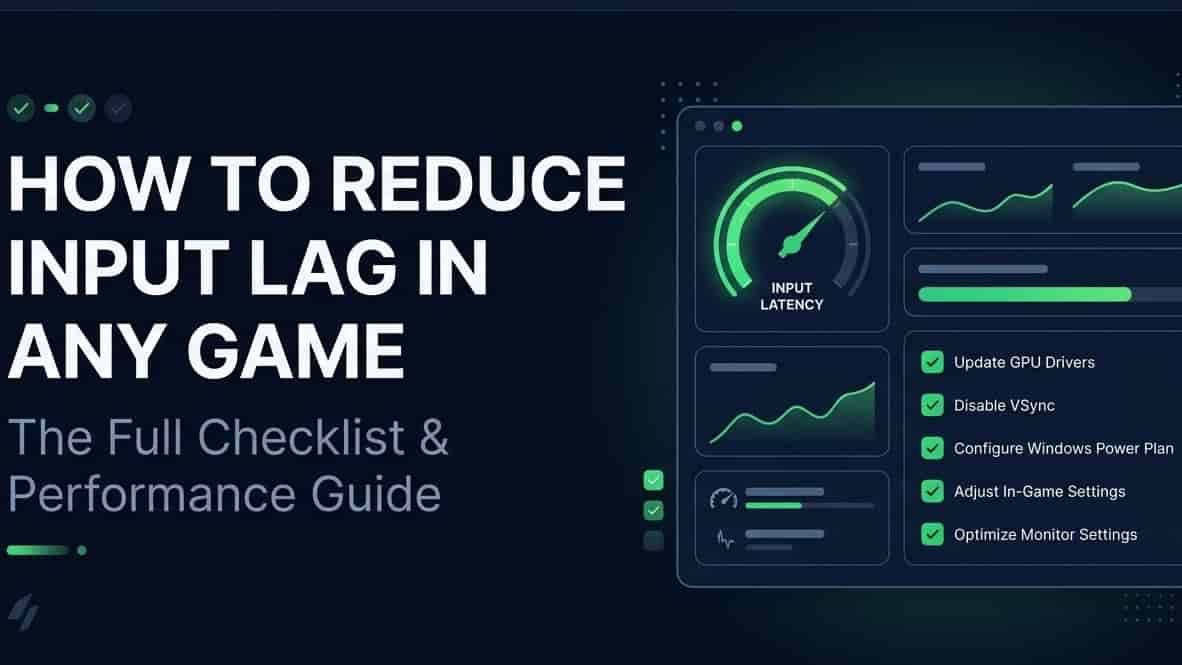
You move your mouse, and the game reacts a beat late. Not laggy internet, not low FPS exactly, just... delayed. That gap between "you did something" and "the game shows it" is input lag, and it's one of those things that quietly ruins games without you always knowing why.
Good news, most of it is fixable, and you don't need to fix all of it at once. Here's the full checklist, grouped by where the lag is actually coming from.
What Input Lag Actually Is (And What It Isn't)
Quick clarification because people mix these up constantly:
Input lag - delay between pressing a button and seeing it happen on screen
Ping / network latency - delay caused by your internet connection, only matters in online games
Low FPS -a different problem, though low frame rate does make input lag feel worse
They're related, but not the same thing. This checklist covers all three, since most people searching "how to reduce lag in games" mean some mix of them anyway.
1. Display Settings (Start Here, Biggest Impact)
Your monitor or TV is honestly where most hidden input lag comes from.
Turn on Game Mode if your display has one. It skips a bunch of picture processing that adds delay without you realizing it.
Turn off motion smoothing, interpolation, or anything with "enhance" in the name. Sounds nice, adds real lag.
Use DisplayPort over HDMI where you can, older HDMI versions sometimes carry a tiny bit more overhead.
Check your monitor's actual input lag rating if you're shopping for a new one, some "gaming" monitors are surprisingly slow.
Not sure what your monitor's actually doing? Our Refresh Rate Test is a good way to confirm it's running the way you think it is.
2. Turn Off (or Fix) V-Sync
V-Sync is one of the biggest input lag offenders, ironically because it's trying to fix a different problem (screen tearing).
If you don't need it, turn it off
If you're getting tearing, use G-Sync or FreeSync instead, way less lag for the same result
Cap your frame rate a few FPS below your monitor's refresh rate, this alone helps a surprising amount
We wrote a full breakdown of this in our screen tearing guide if you want the deeper explanation.
3. Turn On Low-Latency Modes in Your GPU Settings
Both NVIDIA and AMD have built-in tools made specifically for this:
NVIDIA Reflex — reduces the queue of frames waiting to be rendered, shows up as a toggle in supported games and in the NVIDIA Control Panel
AMD Anti-Lag — same idea, found in AMD Software under Gaming settings
Turn these on. There's basically no downside, and the difference is often bigger than people expect.
4. Your Peripherals Matter More Than You'd Think
Use a wired mouse and keyboard if input lag really matters to you, wireless has gotten a lot better but wired still edges it out
Get your mouse's polling rate up, 1000Hz is the common standard now, higher exists but returns get smaller past that point
Turn off mouse acceleration or smoothing in your settings, it can add a tiny, inconsistent delay on top of feeling weird to aim with
Curious what your mouse is actually running at? Check with our Mouse Polling Rate Test.
5. Clean Up Your System
Boring, but it works:
Update your GPU drivers, seriously, this alone fixes more than people expect
Close background apps eating up CPU or GPU, especially browsers with fifty tabs open
Use exclusive fullscreen instead of borderless windowed when you can, borderless adds a small extra step through your OS that fullscreen skips
Restart your PC every once in a while, obvious, but people forget
6. If It's an Online Game, Check Your Network Too
Not technically input lag, but it feels identical when you're playing, so it belongs on this list:
Wired ethernet beats WiFi, every time, no exceptions really
Pause downloads, updates, or streaming on your network while you play
Pick the closest server region if the game lets you choose
7. Console Gamers: A Few Extra Things to Check
Most of this checklist works for PS5, Xbox, and Switch too, but there's a handful of console-specific stuff worth knowing:
Turn on your console's Game Mode, most modern TVs auto-detect a console and offer to switch, say yes
If your TV supports VRR (variable refresh rate) and your console does too, turn it on, it's basically G-Sync/FreeSync for consoles
Use a wired controller when it actually matters, tournaments, ranked matches, whatever. Bluetooth controllers are fine for casual play but do add a touch more lag than wired
Make sure your HDMI cable is actually rated for what you're using, an old HDMI 2.0 cable on a setup that wants HDMI 2.1 can quietly hold you back
One thing that trips people up: your TV's Game Mode might only kick in automatically for certain HDMI ports. Worth checking your TV's manual if the option isn't showing up.
A Couple of Input Lag Myths, Worth Clearing Up
A few things people ask about that don't actually move the needle much:
More RAM reduces input lag — not really, unless you're so low on RAM the game's struggling to run at all. Past a reasonable amount, extra RAM doesn't touch input lag.
SSD vs HDD affects input lag — storage speed affects loading times, not the lag you feel while actively playing.
Higher mouse DPI means lower lag — DPI is about sensitivity, how far the cursor moves per inch, not speed or delay. A high-DPI mouse isn't automatically a low-lag mouse.
A more expensive monitor is automatically lower lag — usually correlated, not guaranteed. Some budget monitors test faster than pricier ones with fancier picture processing turned on by default.
Worth knowing before you spend money chasing the wrong upgrade.
How to Actually Check If It Worked
Fair question, how do you know any of this actually helped? A couple of ways:
The slow-motion phone trick — film your screen and your hand at the same time using your phone's slow-motion camera mode, then count the frames between your click and the on-screen reaction. Rough, but genuinely useful for comparing before and after a change.
In-game feel test — sounds unscientific, but going back to a game you know well after making changes is often the easiest way to notice a difference, especially in something twitchy like a shooter or fighting game.
Dedicated lag testing tools — some monitors and capture cards have built-in latency testers, worth using if you've got access to one.
You don't need to be precise here. The goal is just confirming things feel better, not chasing an exact millisecond number.
Quick Priority List (If You Only Do 3 Things)
Honestly, if you're not going to work through the whole list, do these first:
Turn on Game Mode on your display and turn off motion smoothing
Enable NVIDIA Reflex or AMD Anti-Lag
Switch to wired peripherals and a wired internet connection
That combo alone knocks out most of the noticeable lag for most people.
FAQ
What's the difference between input lag and ping?
Input lag is the delay in your own setup, monitor, GPU, mouse. Ping is delay from your internet connection to the game's servers. Both can feel like "lag," but they need different fixes.
Does V-Sync always cause input lag?
Pretty much, yeah, that's the tradeoff it makes to prevent screen tearing. G-Sync or FreeSync gets you tear-free without nearly as much of the penalty.
Does a higher refresh rate monitor reduce input lag on its own?
It helps, since the screen updates more often, but it's not the whole picture. A 240Hz monitor with bad picture processing can still feel laggier than a well-tuned 144Hz one.
Is wireless really that much worse than wired now?
Good wireless gear has closed most of the gap, but wired still wins if you're chasing every last millisecond.
Does input lag matter the same amount in every game?
Not really. It's huge in fast, competitive stuff like shooters and fighting games where fractions of a second decide fights. In a slower single-player RPG or a turn-based game, you'd probably never notice it.
Do I need to do all of this for a console?
No, most console setups just need Game Mode on, VRR on if it's supported, and a wired controller for anything competitive. The GPU-specific steps (NVIDIA Reflex, AMD Anti-Lag) are PC-only.